


close
Choose Your Site
Global
Social Media


Views: 222 Author: Rebecca Publish Time: 2026-01-23 Origin: Site


Content Menu
● Understanding Transparent Plastics
● Step 1: Setting Up the Scene and Lighting
● Step 2: Creating a Basic Plastic Material in Vray
>> Key parameters to start with:
● Step 3: Adding Refraction and Realistic Index of Refraction (IOR)
● Step 4: Simulating Colored Transparent Plastic Using Masterbatch Principles
● Step 5: Adjusting Subsurface Scattering (SSS) for Realistic Depth
● Step 6: Fine-Tune Surface Imperfections
● Step 7: Rendering Settings for Accuracy
● Step 8: Adding Environmental Realism
● Step 9: Testing, Iterating, and Exporting
● Integrating Masterbatch Knowledge with Virtual Design
● Frequently Asked Questions (FAQ)
>> 1. What is the best IOR setting for transparent plastics in Vray?
>> 2. How does Masterbatch affect transparent plastics in real production?
>> 3. Can I simulate tinted plastic using only Vray without Masterbatch data?
>> 4. What lighting setup is ideal for rendering transparent materials?
>> 5. How do Masterbatch additives influence Vray visualization choices?
In the world of industrial design and digital rendering, Vray stands as one of the most powerful tools for achieving realistic materials, especially plastics. For designers, engineers, and product developers — especially in the manufacturing industry — understanding how to create a transparent plastic material in Vray is crucial. Whether you're working with polycarbonate sheets, acrylic products, or visualizing a Masterbatch-based plastic compound, the clarity and realism of your render can define the quality of the presentation.
This guide will explain step-by-step how to create transparent plastic materials in Vray, from the technical setup within the rendering engine to the conceptual understanding of what makes plastic look “real.” It also introduces how Masterbatch plays an essential role in the real-world production of transparent plastics, linking the virtual and manufacturing domains.

Before setting up materials in Vray, it's important to understand what makes real plastic transparent. Real-world transparent plastic materials — such as PET, PMMA, or polycarbonate — have specific optical properties: low light scattering, minimal internal defects, and carefully tuned additives (often through Masterbatches).
In factory production, transparent Masterbatches are used as concentrated mixtures of polymers and additives. These help achieve desired transparency, UV resistance, anti-yellowing effects, or tint adjustments. Similarly, in Vray, you can simulate these effects using the material's index of refraction (IOR), reflection, refraction depth, and color absorption.
A transparent plastic material depends heavily on the environment and lighting setup. Vray's rendering accuracy is influenced by how light interacts with objects, meaning realistic transparent plastic requires both correct lighting and background balance.
1. Use HDRI lighting – Choose an environment map that gives soft reflections and subtle highlights.
2. Avoid flat lighting – Transparency appears best when multiple light sources create reflections and gentle light transitions.
3. Set up a realistic backdrop – Use a contrasting material behind the plastic object (such as metal or textured surfaces) to emphasize transparency.
4. Adjust the exposure and white balance – Overexposure can wash out transparent effects, while underexposure can make them appear dull.
Think of this as how in real manufacturing labs, Masterbatch additives are tested under varying lighting conditions to observe optical clarity — your Vray setup should mimic that precision.
Go to the Material Editor and create a new VRayMtl. This will be the base for your transparent plastic.
- Diffuse color: Set it to a near-white or light gray (avoid pure white to keep reflections natural).
- Reflection: Increase the reflection to around 0.6–0.8. This gives the shiny, polished surface typical of molded plastic.
- Glossiness: Set reflection glossiness to around 0.9–0.95 for smooth surfaces.
- Refraction: Turn the refraction color close to white for full transparency. This allows light to pass through, much like clear Masterbatch-compounded plastic granules.
Ensure Affect Shadows and Affect Alpha are checked — these options allow transparency to influence the light properly, enhancing the overall photorealism.
The Index of Refraction (IOR) determines how much light bends when entering a material. Transparent plastics like acrylic have an IOR of around 1.49, while polycarbonate is roughly 1.58. Setting this value correctly is crucial for realism.
- PMMA (Acrylic): 1.49
- Polycarbonate: 1.58
- PET: 1.57
When you apply a Masterbatch in real-world transparent polymer manufacturing, additives can slightly alter this refractive index. For accurate simulations, you might subtly tweak this value depending on the desired look — clear, tinted, or frost-like transparency.
In Vray, under Refraction parameters, set the IOR to your target plastic type. Leave Fog Color off for pure clarity, or slightly tinted for colored transparency (e.g., blue-tinted water bottles made with color Masterbatch).
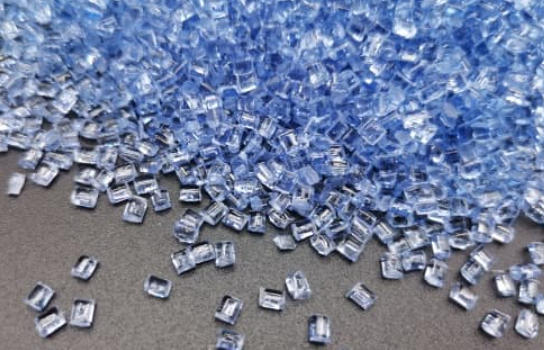
To create realistic colored plastics, you can borrow ideas from how Masterbatches are used in injection molding and extrusion.
A color Masterbatch is essentially a concentrated pigment combined with carrier resin. When diluted in base plastic, it creates the final color tone while maintaining transparency. In Vray, you simulate this by adjusting the Fog Color and Fog Multiplier under Refraction.
- Fog Color simulates the tint of color through the thickness of plastic. For lightly tinted clear plastic, use very faint hues (light cyan, amber, or green).
- Fog Multiplier controls the intensity — a higher multiplier darkens the tint faster through thickness.
For example, if modeling a PET bottle made with green Masterbatch, choose a pale green Fog Color and set Fog Multiplier between 0.01 and 0.05 for subtle depth.
While most transparent plastics rely heavily on refraction, certain plastics (like milky translucent variants or frosted finishes) require Subsurface Scattering (SSS). This simulates how light diffuses slightly inside the material before leaving the surface — similar to plastic with pearl Masterbatch additives.
In VrayFastSSS2 material, adjust:
- Scatter radius to control thickness light penetration.
- Subsurface color for inner tone.
- Specular layer for outer reflection intensity.
A subtle SSS layer gives life to opaque or semi-transparent Masterbatch variations used in cosmetic packaging, diffuser panels, or consumer products.
Perfectly transparent plastics without any imperfection often look unreal in renderings. To simulate a realistic product, add tiny surface details similar to real injection-molded items.
- Use a bump or normal map with a fine, noise-based texture.
- Slightly adjust Reflection Glossiness for micro scratches or polish marks.
- Add fingerprint smudges using roughness maps for high-detail shots.
In manufacturing, Masterbatch additives can help control surface properties such as anti-scratch, anti-fog, or anti-static features. Mimicking these visually through texture gives your render both credibility and industrial alignment.
In Vray's Render Settings, small choices affect how transparent plastics behave:
1. Enable Refraction Glossiness tracing for accurate caustics (light bending and focusing through the object).
2. Increase subdivision for reflections and refractions (16 or higher for clean results).
3. Use Depth of Field (DOF) subtly to enhance visual focus.
4. Turn on Caustics if you want realistic light patterns on surfaces beneath the plastic.
Much like real plastic testing labs evaluating Masterbatch formulations under different optical setups, you can experiment in Vray with render quality to achieve clarity without noise.
Your plastic render will look incomplete without a reflective environment. Transparent materials interact strongly with surroundings, so strategic composition enhances realism.
- Add metallic or wooden elements near the plastic object to provide reflection contrast.
- Consider placing the object on a studio light table or HDRI-lit industrial scene.
- Use ray tracing to capture internal reflections, giving the impression of density — a physical trait strongly influenced by Masterbatch content in real plastics.
This connection between visual design and real material manufacturing underscores the importance of knowing how additives, pigments, and processing conditions affect appearance. Vray enables you to simulate these parameters with precision.
After your first render, review how the transparency behaves under multiple light angles. Adjust IOR, glossiness, and fog multipliers in small increments. Transparent materials are very sensitive to minor tweaks.
- Compare your results to real Masterbatch samples to match visual clarity.
- Save different versions (clear, tinted, frosted) as presets for future projects.
- Export high-resolution renders in .EXR or .TIFF for maximum dynamic range.
Remember that Vray's render engine reproduces not only visual effects but optical interactions. Treat it like color matching in Masterbatch formulation — consistent testing leads to accuracy.
In real industrial design workflows, mastering Vray transparent plastic materials has practical value beyond visualization. Manufacturers use such renders to pre-approve new material appearances before mass production.
By incorporating Masterbatch composition data (pigment tone, transparency index, optical density) into your digital workflow, designers can ensure that rendered visuals correspond closely to the physical plastic outcome. This ensures that clients, engineers, and production managers all share the same visual expectations from prototype to final product.
- Overusing reflection: This can make your plastic look metallic.
- Using pure white fog colors: Creates washed-out results.
- Ignoring ambient lighting: Makes transparent plastic appear flat.
- Neglecting scale: Refraction and fog depth behave differently based on object scale.
- Skipping caustics or shadow effects: Reduces realism dramatically.
Every digital artist — much like a Masterbatch engineer — must balance clarity, color, and consistency to produce lasting, high-quality results.
Creating transparent plastic materials in Vray combines artistic precision with an understanding of real-world polymer science. When approached systematically — from lighting to material properties, reflection balance, and refraction tuning — the results can match industrial-grade realism.
By integrating insights from Masterbatch formulation, designers can simulate not just how plastic looks, but how it behaves under various lighting and thickness conditions. Transparent plastics, whether clear or tinted, embody both technical clarity and aesthetic purity. With patience and testing, you can make every render a faithful reflection of its physical counterpart.
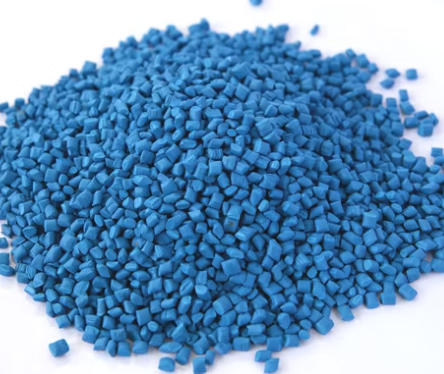
Typical IOR values range between 1.49 and 1.58, depending on the polymer type (e.g., acrylic or polycarbonate). Match it to your target material for the best realism.
Masterbatch controls the optical clarity, color tone, and UV stability of transparent plastics. It helps manufacturers produce consistent color and transparency in large-scale production.
Yes. You can use the Fog Color and Fog Multiplier parameters in the refraction section to simulate color tints similar to real Masterbatch effects.
Use HDRI lighting and multiple soft light sources for realistic reflections. Avoid flat, single-directional lights, as they reduce depth and realism.
Masterbatch additives like anti-yellowing or pearlescent effects can inspire choices in SSS, glossiness, and fog values. Understanding these helps replicate the physical optics of transparent plastics in renders.


