


close
Choose Your Site
Global
Social Media


Views: 222 Author: Rebecca Publish Time: 2026-01-23 Origin: Site


Content Menu
● Understanding Plastic and Masterbatch
● Essential Principles of Plastic Material Creation
● Step-by-Step Guide: How To Make Plastic in Vray
>> Step 1: Create a New Vray Material
>> Step 2: Adjust Diffuse Color
>> Step 3: Set Reflection Parameters
>> Step 4: Add Bump or Normal Maps
>> Step 5: Enable Subsurface Scattering (Optional)
>> Step 6: Apply Roughness or Coating Layers
>> Step 7: Lighting and HDRI Setup
● Tips for Realistic Plastic Rendering
● Simulating Masterbatch Realism in Vray
● Using Masterbatch Data for Industrial Visualization
● Troubleshooting and Optimization
● FAQ
>> (1) What is Masterbatch in plastic rendering?
>> (2) How do I make transparent plastics in Vray?
>> (3) Which HDRI lighting setup works best for plastics?
>> (4) Can I simulate metallic or pearlescent Masterbatch in Vray?
>> (5) Why do my plastic renders appear too dull?
Creating realistic plastic materials in Vray is a vital skill for designers, 3D artists, and manufacturers who need to visualize plastic parts or masterbatch-based products accurately. Whether you are designing packaging, automotive components, or consumer goods, understanding how to mimic the subtle properties of plastics—such as glossiness, translucency, and color—is crucial for professional rendering results.
This comprehensive guide explains how to create stunning plastic materials in Vray from scratch, focusing on color accuracy, surface reflection, and realistic shader adjustment. You will also learn how to apply Masterbatch concepts from the real plastic production process to your Vray material design for authentic results.

In real-world manufacturing, plastic is rarely used in its pure, base-resin form. To achieve specific colors, durability, or UV resistance, manufacturers mix Masterbatch into raw polymers. A Masterbatch is a concentrated mixture of pigments, additives, and carrier resin that gives the plastic its unique characteristics.
In computer rendering, the same logic applies: the base plastic shader acts as the polymer, while texture maps and reflection settings function like the Masterbatch, determining how light behaves on the surface. Thus, learning to “simulate” the effects of Masterbatch inside Vray helps produce more lifelike, high-quality renders.
Creating plastic in Vray requires balancing three main properties: reflection, glossiness, and translucency. Each of these parameters corresponds to real-world qualities influenced by Masterbatch additives.
1. Reflection Strength: Plastic reflects light softly, influenced by its smoothness and surface polish.
2. Glossiness: Affects how blurred or sharp the reflections appear. Higher glossiness produces mirror-like plastics; lower glossiness results in matte finishes.
3. Translucency (or Subsurface Scattering): Common in semi-transparent plastics or colored objects made with translucent Masterbatch, simulating how light scatters beneath the surface.
By combining these properties correctly, you can simulate materials from glossy ABS components to matte polypropylene containers.
Start by creating a new VrayMtl in your material editor. Rename it appropriately, such as “Plastic_Masterbatch_Base.” The name helps you manage different plastic variants later.
Set the Diffuse slot to the color of your plastic. You can pick any RGB value manually or load a bitmap for more realism. If your product uses Masterbatch-based coloring, use scanned references or real material color codes (e.g., Pantone) to get precise hues.
For example:
- Pure white plastic: RGB (215, 215, 215)
- Blue masterbatch tone: RGB (23, 45, 130)
- Transparent red PET: RGB (180, 45, 50) with lower opacity
Enable Reflection and adjust the Reflection Color based on the plastic's gloss. Typical plastics have around 0.5 to 0.8 reflection strength. Keep Fresnel reflections turned on to maintain physically accurate effects, as plastics reflect more at grazing angles.
- Glossy plastic parts (e.g., polished ABS): Glossiness = 0.85–0.95
- Semi-matte polyethylene: Glossiness = 0.60–0.75
- Soft-touch polypropylene: Glossiness = 0.45–0.55
These differences mimic how Masterbatch composition can change the surface finish of real products.
Even smooth injection-molded plastics have micro-imperfections. Use a subtle Bump or Normal map to simulate surface texture. This technique is especially important for visualizing Masterbatch-enhanced materials, where pigment or additive particles may create microscopic irregularities.
Set bump strength between 0.05 and 0.2 for realism.
For translucent materials like colored resin or semi-transparent plastic packaging, enable Subsurface Scattering (SSS). In Vray, you can use VRayFastSSS2 or adjust the Refraction layer to allow light to penetrate the material.
Change the Fog Color to match the internal tone of your plastic and reduce the IOR slightly (around 1.45–1.5). This mimics how light diffuses through a colored Masterbatch within the polymer.
For advanced simulation, combine the base material with a Coating Layer to emulate protective films or clear coatings. This is common in products where the Masterbatch layer lies beneath a glossy, transparent surface.
Use Blend Material in Vray to mix different layers — one for the base plastic and another for the outer coating gloss.
Lighting is crucial. Even the best Masterbatch representation fails under poor illumination. Use an HDRI lighting setup to reproduce realistic reflections, and add a few studio lights to highlight edges and contours.
Set environment brightness carefully to avoid washed-out surfaces.
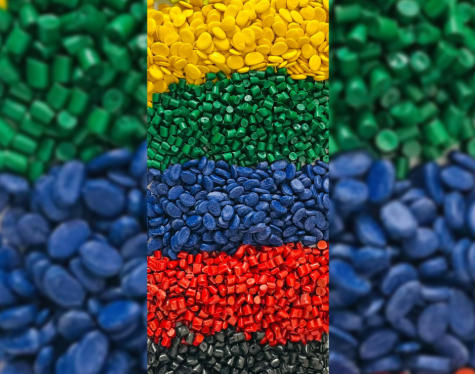
- Use Reference Images: Always compare your render with real masterbatch-colored samples under similar lighting.
- Work in Linear Workflow: Gamma-correct textures and adjust exposure to get physically accurate colors.
- Color Variance: Real plastics often exhibit slight tone shifts due to Masterbatch distribution — simulate this with subtle noise in the diffuse or reflection map.
- Render at High Sampling: Avoid grain in glossy reflections by increasing Vray's sampling rate.
- Control Specular Highlights: The sharper the highlight, the harder the plastic appears. Adjust glossiness and reflection balances accordingly.
One of the most effective ways to elevate your render quality is to incorporate Masterbatch realism. This method replicates how colorants and additives alter surface and optical properties.
1. Pigment Depth Simulation: Use gradient maps or procedural noise in the refraction or subsurface scattering channels to show varying pigment density.
2. Additive Effects: Metallic Masterbatch or pearlescent pigments can be simulated using VrayBlendMtl and adding micro-flake layers.
3. UV Resistance or Matte Finishes: Apply slightly desaturated reflection tones or rough surface maps to suggest protective additives.
4. Recycled Masterbatch: Introduce imperfections—tiny specks, uneven coloration—to mimic blended recycled pellets.
By combining these subtle cues, you can achieve highly convincing renders that feel identical to factory-grade plastics.
For engineers and manufacturers, pre-visualizing Masterbatch effects in Vray allows better communication between designers and production teams. Before committing to large-scale compounding, teams can test different Masterbatch ratios virtually, checking color uniformity and translucency on the model.
This approach saves both time and material costs by reducing physical trials. Moreover, using digital Vray render previews helps promote custom Masterbatch solutions to international buyers during presentations or trade shows.
Even seasoned artists sometimes face challenges when building plastic shaders in Vray. Here are common problems and their solutions:
- Plastic looks metallic: Decrease reflection strength or increase diffuse contribution; ensure Fresnel reflections are enabled.
- Colors appear too flat: Add subsurface scattering for depth; plastics rarely have flat light diffusion.
- Render noise: Boost reflection/refraction sampling and use denoiser settings.
- Unrealistic brightness: Check scene exposure and HDRI intensity — plastics should reflect strong highlights, not emit light.
Remember, in both rendering and manufacturing, small tweaks make significant differences.
Creating realistic plastic materials in Vray is both an art and a science. By understanding how Masterbatch influences real-world polymer behavior, you can translate those physical principles into digital shaders that capture authenticity, depth, and visual appeal. Through careful adjustment of color, reflection, translucent properties, and surface texture, your renders will convey the tactile realism of high-quality plastic products—perfect for consumer goods, automotive parts, or industrial applications.
Master the Masterbatch mindset, and your Vray plastic materials will not only look real but feel believable to your audience.
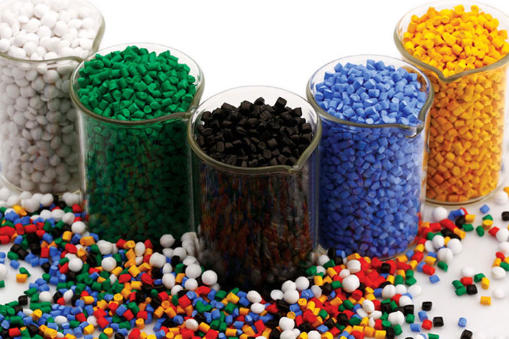
Masterbatch is a concentrated mix of pigments and additives used to color or modify polymers. In rendering, it refers conceptually to how color, texture, and optical properties are added to the base plastic material.
Use Refraction and enable Subsurface Scattering (SSS) or VrayFastSSS2. Adjust IOR (1.45–1.5) and fog color to simulate colored transparency similar to translucent Masterbatch-based plastics.
Use studio lighting HDRIs with strong reflections but soft shadows. Overhead light gives glossy plastics a natural highlight, perfectly emphasizing Masterbatch coloration.
Yes. Use VrayBlendMtl or VrayFlakesMtl to add metallic particles and microflakes. Adjust anisotropy for a shimmering look often found in automotive-grade Masterbatch plastics.
Increase reflection strength, ensure correct gamma settings, and enhance color saturation. Real plastics with Masterbatch blends appear vivid due to proper light interaction and internal scattering.


