


close
Choose Your Site
Global
Social Media


Views: 222 Author: Rebecca Publish Time: 2026-01-23 Origin: Site


Content Menu
● Understanding the Nature of Plastic Material
● Step 1: Start With a Vray Material Base
>> Key Parameters to Set First:
● Step 2: Simulating Surface Finish – Controlling Reflection and Glossiness
>> Steps:
● Step 3: Creating Translucent or Semi-Transparent Plastic
>> Steps to Achieve Translucency:
● Step 4: Adding Subsurface Scattering (SSS)
>> Using VRayFastSSS2 or VRayAlSurface:
● Step 5: Introducing Imperfections and Detailing
>> Methods to Simulate Realistic Imperfections:
● Step 6: Lighting and Environment Setup
● Step 7: Rendering and Post-Production
● Optimizing for Product Visualization
● Masterbatch and Its Role in Rendering Realism
● FAQs About Creating Plastic Materials in Vray
>> 1. What is Masterbatch, and why is it important in Vray material creation?
>> 2. What Fresnel IOR value works best for plastic?
>> 3. How do I make matte plastic instead of glossy?
>> 4. Can Subsurface Scattering improve plastic realism?
>> 5. How can I ensure my render matches physical Masterbatch samples?
In the world of 3D visualization, achieving realistic plastic rendering is both an art and a science. Designers, CGI artists, and engineers often struggle to replicate the tactile and reflective nuances of real plastic — from glossy ABS casings to translucent polypropylene surfaces. In Vray for 3DS Max, creating an authentic plastic material requires more than assigning a basic shader; it demands a sophisticated balance of reflection, glossiness, refraction, and Masterbatch color behavior.
This guide will walk you through the professional process of designing a realistic plastic material in Vray 3DS Max, incorporating insights from real-world polymer and Masterbatch applications. By the end, you'll understand how to fine-tune plastic materials both visually and technically.
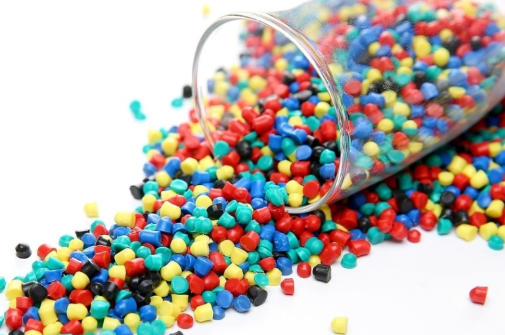
Plastic's appearance depends on multiple optical characteristics influenced by surface polish, pigmentation level, and internal scattering. In manufacturing, plastic coloration and texture are controlled mainly by Masterbatch — a concentrated pigment used to color raw polymer resins. Similarly, in digital design, the shader properties in Vray mimic these physical mechanisms.
Different plastics, such as PE, PP, PC, or ABS, can exhibit distinctive reflection behaviors. For example:
- ABS plastic: Opaque with medium gloss and strong color saturation from Masterbatch pigments.
- Polycarbonate plastic: Semi-transparent with high specularity and subtle color diffusion.
- Polypropylene (PP): Matte surface, slightly translucent, typically using non-gloss Masterbatch colors.
Understanding these differences allows you to match real-world materials during visualization accurately.
Open 3DS Max, and in the Material Editor, select a Vray Material (VRayMtl). This material type gives you complete control over reflection, refraction, and sub-surface properties.
- Diffuse Color: This represents the base color of the plastic. Choose it according to your desired Masterbatch tone (e.g., bright yellow PP, deep blue ABS).
- Reflection: Set it between 0.2 and 0.6 for general plastics. Too high reflection may make the surface look metallic.
- Glossiness: Between 0.4 and 0.9 works best depending on the polish level. A higher gloss mimics freshly molded surfaces, while lower gloss suits matte or frosted plastics.
Pro Tip: Match the Diffuse color with real Masterbatch data or color codes (like Pantone or RAL) used in industrial plastic production.
The perception of realism mainly comes from how light interacts with the surface. Real plastic surfaces scatter and reflect light inconsistently, affected by microscopic imperfections. In 3DS Max, you can simulate this by adjusting reflection glossiness and bump maps.
1. Reflection Glossiness: Use a value around 0.75 for semi-gloss surfaces. For glossy, polished plastics, 0.85 to 0.95 works well.
2. Fresnel Effect: Always enable Fresnel reflections. Adjust Fresnel IOR between 1.45 and 1.6, typical for polymers.
3. Bump Map or Normal Map: Add a subtle bump texture (e.g., 0.2–0.4 strength). This imitates mold texture or matte finishing.
In physical manufacturing, plastic's surface finish is determined during injection molding — using specific mold textures and the Masterbatch pigment load influencing the reflection. Translating these details digitally makes the material lifelike.
Many real-world plastics show partial light transmission, especially when made from polycarbonate, acrylic, or polyethylene. In Vray, you simulate this effect with Refraction and Fog Color parameters.
- Refraction Value: Set between 0.2 and 0.8, depending on light penetration.
- Fog Color: Choose a color slightly lighter than your main Masterbatch tone. This helps simulate the depth color variation seen in real plastic.
- Fog Multiplier: Start from 0.3. Increase this to create denser material or decrease for lighter tones.
- Affect Shadows: Enable this option to produce accurate shadow tinting.
These adjustments create impressive realism for products like transparent packaging materials, LED casings, or plastic bottles where Masterbatch is mixed for subtle color effects.
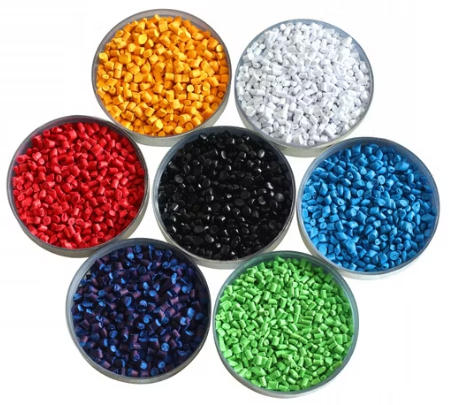
Subsurface scattering (SSS) is crucial to simulating how light diffuses internally within plastic material. This effect occurs when light penetrates the surface, interacts with the internal pigment (Masterbatch), and scatters before exiting.
1. Choose VRayFastSSS2 Material.
2. Preset: Start with the “Plastic” preset as a base.
3. Scatter Radius: Adjust between 0.6–1.2 cm depending on model scale.
4. Diffuse/Scatter Color: Input your main Masterbatch color.
5. Specular Layer: Keep specular gloss high (0.8–0.9) for polished surfaces.
The SSS contribution not only improves realism but also recreates the soft glow effect typical in colored translucent plastics.
Perfectly smooth plastic is rare even in CGI. Adding imperfections like dust, fingerprints, or slight scratches adds life to renders.
- Use procedural dirt maps (e.g., VRayDirt) around edges or grips.
- Apply a layered material setup (VRayBlendMtl) with one base glossy material and a secondary rougher layer mixed with a mask texture.
- Add subtle reflection noise to simulate uneven Masterbatch pigment distribution or matte injection marks.
These fine imperfections reproduce the nuanced behavior of injection-molded Masterbatch plastics used in automotive dashboards or consumer electronics casings.
Plastic rendering quality depends strongly on the lighting context. Use HDRI environments or Vray Dome Lights to simulate realistic reflections. Avoid using uniform lighting as it flattens your material's highlights and destroys surface realism.
1. Add a Vray Dome Light with an HDRI map.
2. Adjust rotation to position highlights effectively.
3. Use a softbox light to emphasize gloss variations.
4. Keep the overall exposure balanced — plastic surfaces look best under medium lighting, not overexposed.
Since Masterbatch pigments affect how color interacts with light, ensure you preview under diverse lighting conditions to evaluate true color consistency.
For photorealistic results, increase Vray render quality options:
- Subdivs: Higher for reflection (32–64).
- GI Engines: Use Brute Force + Light Cache for balanced speed and accuracy.
- Sampling: Choose Adaptive Image Sampler with high noise threshold (0.005–0.01).
In post-production (Photoshop or After Effects), you can adjust overall saturation, contrast, or add bloom to simulate light wrapping — enhancing the Masterbatch-inspired color gradients.
Professional Tip: Always render test samples under different HDR images to ensure color consistency of your Masterbatch-based tones across different lighting environments.
In product visualization, particularly for plastic consumer goods, clients expect authentic representation of real materials. The Masterbatch content defines the corporate branding color, meaning your digital plastic shading must perfectly align with production color standards.
To achieve this:
- Request Masterbatch sample chips or color swatches from your client.
- Use a spectrophotometer or digital eyedropper to capture accurate RGB/HEX codes.
- Match those colors precisely in your Vray diffuse channel and verify under color-managed lighting.
These steps form a bridge between virtual visualization and physical manufacturing outcomes — a crucial aspect of industrial design communication.
Even experienced designers sometimes fall into these traps when creating plastic shaders in Vray:
- Using metallic reflection levels: Makes plastic look like metal. Reduce reflection intensity.
- No Fresnel reflections: Always enable it; plastic relies on angle-dependent light.
- Incorrect IOR values: Plastic typically ranges 1.45–1.6.
- Over-saturation of Masterbatch color: Keep diffuse value moderated to avoid unrealistic rendering.
- Flat lighting setup: Without good environment reflections, plastic looks dull.
Avoid these issues to create convincing professional-grade materials.
To truly master digital plastic, you must understand how Masterbatch composition affects visual output. In manufacturing, Masterbatch combines pigment, additives, and carrier resins that control not only color but also opacity, UV resistance, and surface finish.
In 3D visualization, these are represented through:
- Diffuse color: Pigment tone.
- Specular layer: Surface polish behavior linked to additive type.
- Translucency and fog: Controlled by pigment load concentration.
By replicating these properties accurately in Vray, you bring an engineering-level understanding of materials into digital artistry — a skill valued across product design industries.
Creating realistic plastic materials in Vray 3DS Max is both a technical and artistic endeavor. The key lies in understanding the physical behavior of plastic, the optical function of Masterbatch pigments, and how to recreate them digitally using reflection, glossiness, translucency, and SSS parameters. Combining these aspects results in plastic renders so convincing they could pass for real photographs.
When executed correctly, this approach empowers product designers, packaging engineers, and 3D visualizers to communicate color-accurate, manufacturing-aligned material previews that help speed up decision-making in global plastic product development.
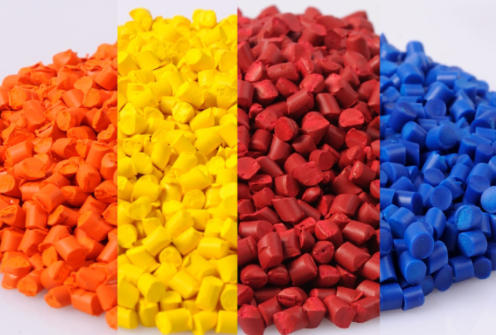
Answer: Masterbatch is a concentrated pigment blend used in real-world plastics to control color and appearance. In Vray, simulating Masterbatch helps achieve color consistency and realistic depth, mirroring how real plastics look under different lighting.
Answer: Use an Index of Refraction (IOR) between 1.45 and 1.6. This range closely matches typical polymer optical properties, ensuring realistic reflection behavior across the surface.
Answer: Lower the reflection glossiness (0.4–0.6) and add a fine bump map to simulate a textured surface. Matte plastics often use specific Masterbatch formulations that scatter light more diffusely.
Answer: Yes. Subsurface Scattering (SSS) is essential for translucent plastics like acrylic or soft PP materials. It mimics internal light diffusion affected by pigment density from the Masterbatch.
Answer: Use real color data (Pantone or RAL), calibrate your monitor, and render under HDRI environments. Compare with real Masterbatch samples under daylight conditions for final validation.


