


close
Choose Your Site
Global
Social Media


Views: 222 Author: Rebecca Publish Time: 2026-01-20 Origin: Site


Content Menu
● Understanding Plastic And Masterbatch
● Choosing Renderer And Shader In Maya
● Basic Plastic Material Setup
● Step-By-Step: Creating Opaque Plastic
● Adding Surface Imperfections
● Creating Translucent And Thin Plastic
● Using Subsurface Scattering For Soft Plastics
● Lighting And Environment Considerations
● Building A Masterbatch Material Library
● Practical Tips For Color-Accurate Masterbatch Materials
● Linking Digital Shaders To Real-World Production
● FAQ
>> (1) How do I make a simple plastic material in Maya?
>> (2) How can I simulate translucent Masterbatch plastic?
>> (3) What are good settings for glossy plastic in Arnold?
>> (4) How do I add realistic imperfections to a Masterbatch plastic shader?
>> (5) Can I reuse the same plastic material for different Masterbatch colors?
Creating a realistic plastic material in Maya is mainly about how light interacts with a colored, slightly glossy surface, often with subtle imperfections and sometimes translucency. Plastic products in real factories are usually made from polymer resins and Masterbatch formulations, and the same logic can guide how to build convincing digital materials in Maya and Arnold.

In real manufacturing, plastic is created by combining a base polymer (such as PP, PE, ABS, or PET) with additives and colorants that are often supplied in the form of Masterbatch. Masterbatch is a concentrated blend of pigments or functional additives dispersed into a carrier resin, which is later diluted into natural polymer during processing.
From a visual point of view, Masterbatch determines the base color, opacity, gloss, and sometimes special effects such as metallic, pearlescent, marble, or fluorescent finishes. Masterbatch can also include UV stabilizers, flame retardants, antistatic agents, anti-fog additives, slip agents, and other modifiers that subtly influence how light interacts with the plastic surface.
When you create plastic material in Maya, thinking like a Masterbatch formulator helps: imagine each shader as a recipe combining color, gloss level, translucency, and microscopic texture. In the 3D scene, Base Color, Specular Roughness, Transmission, and normal or bump textures become the digital equivalents of Masterbatch design choices.
In current Maya workflows, Arnold is widely used as the default renderer, and it provides the aiStandardSurface (Standard Surface) shader, which is ideal for materials like plastic, wood, glass, and stone. By default, Standard Surface parameters are already tuned for generic plastic-style surfaces, with a diffuse base and a physically plausible specular response.
When starting a plastic material, the simplest workflow is to assign a new aiStandardSurface (or Standard Surface in MaterialX/Arnold) to your object and keep the render engine set to Arnold. This shader can cover colored opaque plastic, translucent plastic, and even thin transparent plastic containers with only a few parameter adjustments.
If your pipeline uses USD or LookdevX, Standard Surface remains a flexible choice, allowing you to share a Masterbatch-based plastic library across different DCC tools with minimal changes. This is extremely useful if your company produces many plastic products and needs consistent Masterbatch colors in every visualization.
To create a basic plastic material in Maya with Arnold, focus on four main controls: Base (diffuse) color, Specular weight and roughness, Index of Refraction (IOR), and optional Subsurface scattering for softer plastics. A typical plastic-like appearance can be obtained by using a moderate Base Weight, a solid color, and a specular IOR around 1.5–1.55, which is similar to many polymers.
For a clean “Masterbatch-style” product color, set the Base Color to your target brand shade, reduce Base Weight slightly if the material should look less matte, and increase Specular Weight to 1.0 with Roughness around 0.2–0.4 for gloss to semi-gloss plastic. This reflects how injection-molded parts based on high-quality Masterbatch appear in real applications.
You can think of Roughness as the main control for surface finish:
- Very low roughness (0.05–0.15) looks like polished, high-gloss plastic.
- Medium roughness (0.2–0.4) gives common consumer product gloss.
- Higher roughness (0.45–0.6) simulates textured or satin Masterbatch plastic used for grip and scratch hiding.
Creating an opaque plastic material is the most common scenario for Masterbatch-based products like caps, housings, toys, and packaging components. The process in Maya can be broken down into a clear sequence that you can repeat for any color or Masterbatch formula.
1. Select the object in the viewport and assign a new aiStandardSurface (Standard Surface) material from the Arnold or MaterialX menu.
2. In the Attribute Editor, rename the shader according to the polymer and Masterbatch color (for example, “PP_Blue_Masterbatch01” or “ABS_MatteBlack_MB”). This keeps your material library clear and production-ready.
3. Set Base Weight to around 0.7–1.0 and choose a solid Base Color that corresponds to your Masterbatch color reference or RAL/Pantone code. Avoid fully saturated values; slightly desaturated tones often look more realistic.
4. Increase Specular Weight to 1.0, set IOR to roughly 1.52–1.55, and start with a Specular Roughness of about 0.25–0.35 to achieve realistic plastic highlights. Adjust this value until the reflection feels similar to real parts.
5. Leave Transmission at 0 for opaque plastic so that the Masterbatch-loaded polymer appears fully solid with no light passing through.
6. Optionally, add a very subtle bump or normal map with a small scale to mimic micro-texture from the mold or tooling, which helps sell the realism of the Masterbatch component.
After these steps, render a test image with a simple studio HDRI. Rotate the model and adjust Roughness or Base Color slightly until the plastic matches your reference samples or printed Masterbatch color charts.
Real plastic produced with Masterbatch is rarely perfectly smooth; minor scratches, mold-flow marks, fingerprints, and subtle texture all affect reflections. Introducing such imperfections is critical for realism in Maya and Arnold.
A common workflow is to connect grayscale textures to the Roughness or Bump inputs of the aiStandardSurface shader. By driving Roughness with a fine grayscale map and setting a mild Bump value, the plastic will catch highlights more naturally, similar to lightly textured Masterbatch-based parts used in consumer products. Tiny noise or speckle maps can represent micro-surface irregularities that appear on injection-molded or extruded Masterbatch items.
You can prepare different “finish presets” that correspond to your factory's real Masterbatch finishes:
- High gloss finish with minimal bump for premium packaging.
- Fine matte texture for technical components.
- Coarse texture for outdoor or industrial Masterbatch products where scratch resistance is important.
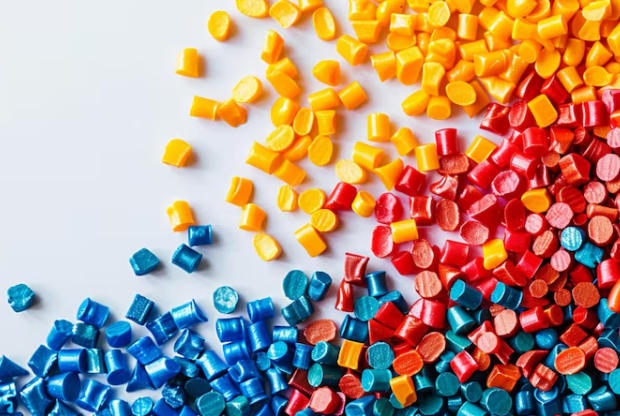
Many Masterbatch formulations are designed for translucent plastics such as bottles, cosmetic containers, lighting diffusers, and thin packaging films. In Arnold for Maya, translucent plastic is a combination of Transmission and Subsurface scattering (SSS), tuned so that light passes through while still scattering inside the material.
To build a translucent Masterbatch plastic:
1. Start from your opaque plastic shader and gradually increase Transmission.
2. Use a colored Transmission Color or adjust Base Color so that light passing through carries the tint of the Masterbatch.
3. Disable Opaque on the shape node so Arnold calculates transparency correctly.
4. Keep Specular settings similar to opaque plastic but consider slightly reducing Roughness for clearer translucent parts.
For thin-walled plastics like cups or blister packs, enabling thin-walled behavior lets Arnold treat the object as a surface without volume. In such cases, Transmission is set high, thin-walled is turned on in the shader, and the thickness of the geometry does not need to represent real millimeters. This is ideal for thin Masterbatch-colored films and packaging where you mainly care about color and translucency, not deep internal scattering.
Some Masterbatch applications target soft, slightly waxy plastics where light penetrates the surface and diffuses inside, such as toys, medical devices, or ergonomic grips. In Maya, this can be replicated by enabling Subsurface scattering in the aiStandardSurface and tuning Weight, Color, Radius, and Algorithm.
Using Randomwalk or Randomwalk V2 as the SSS algorithm, a moderate SSS Weight (for example, around 0.3–0.4) and a soft subsurface Color can simulate polymer blends filled with Masterbatch that still allow light to travel beneath the surface. A small Radius value keeps the effect subtle, avoiding a “gel” or “rubber” look unless that is the desired Masterbatch product style.
You can experiment with:
- Slightly warmer subsurface Color than the Base to give a natural, soft feeling.
- Different SSS Radius values to mimic rigid plastic versus soft-touch Masterbatch designs.
- Mixing SSS with a small amount of Transmission for semi-translucent components like LED covers or cosmetic lids.
Plastic Masterbatch colors in real life look different under daylight, showroom LEDs, or warehouse lighting, and the same applies to digital materials in Maya. Proper lighting is essential to evaluate plastic shaders accurately.
A good practice is to use HDRI-based Skydome lights or multiple area lights to create soft, realistic reflections on the plastic surface. This makes it easier to judge the impact of Specular Roughness, SSS, and Transmission on Masterbatch-based materials and ensures that every color variant appears correctly across your rendering library. Having at least one neutral HDRI and one studio-style HDRI gives you two consistent environments to test Masterbatch materials.
If your company supplies Masterbatch to global customers, you may also simulate different lighting standards such as D65 daylight or specific LED temperatures to preview how the same Masterbatch color will appear in various regions and retail environments.
For a manufacturing-oriented workflow, it is efficient to create a reusable library of plastic materials that correspond to real Masterbatch formulations. Each shader can represent a specific polymer base, color, and additive package that is commonly ordered by customers.
Within Maya, store these materials in a central scene or use look-development tools and presets so that designers and engineers can quickly assign “PP Black Masterbatch”, “ABS White Masterbatch”, “HDPE Red Masterbatch”, or “Recycled PET Masterbatch” to different models. This approach keeps visualizations consistent with real-world Masterbatch products marketed by your plastic materials company.
You can further organize the library by:
- Polymer type (PP, PE, ABS, PC, PA, PET, etc.).
- Function (standard color Masterbatch, UV Masterbatch, flame-retardant Masterbatch, anti-static Masterbatch).
- Surface finish (glossy, matte, textured, soft-touch).
This structured library not only speeds up rendering but also becomes a powerful sales and R&D tool, allowing teams to preview Masterbatch solutions virtually before producing physical samples.
Achieving color accuracy is a critical requirement when visualizing Masterbatch-based plastics for branding and product design. Color appearance depends on gamma, color space, and how texture or color data is interpreted by the renderer.
Using linear workflow and correct color management in Maya ensures that the Base Color values for Masterbatch formulations display accurately. When needed, sample colors from measured data or reference images, and verify that the same shader looks consistent under different HDRI lighting setups to reflect how real Masterbatch products behave in multiple environments.
For high-value projects, you can:
- Use measured spectral data when available and approximate it in RGB values.
- Match digital renders with physical Masterbatch plaques photographed under controlled lighting.
- Create internal naming rules linking digital materials to Masterbatch product codes used in your ERP or lab management system.
Several recurring mistakes can make plastic materials look fake or “too CG” even if they are based on real Masterbatch formulations. Overly sharp reflections, wrong IOR values, and missing surface imperfections are among the most common issues seen in Maya renders.
Avoid setting Specular Roughness too low, using extremely saturated colors without any subtle variation, or leaving Opaque enabled when trying to create translucent plastic. Careful balancing of specular highlights, subtle roughness maps, and proper Transmission or SSS is essential for believable Masterbatch plastic in Arnold. Another frequent problem is using incorrect scale: if your model units are not realistic, bump maps and roughness patterns may look oversized or too fine, breaking the illusion of real Masterbatch plastic.
For a plastic materials manufacturer, the goal is not only beautiful renders but also a clear link between digital materials in Maya and real Masterbatch products produced on extrusion or injection lines. Each shader should ideally correspond to a real Material Specification Sheet or Masterbatch code.
By maintaining this link, sales engineers and designers can send Maya renders or animations to customers, showing exactly how a particular Masterbatch will look on a bottle, cap, film, or technical component. When the customer approves the visual appearance, production can simply use the matching Masterbatch code, reducing sampling cycles and speeding up time-to-market.
Over time, your Maya Masterbatch library can become a visual extension of your product catalog, supporting global marketing, online configurators, and digital showrooms.
Creating plastic material in Maya is fundamentally about understanding how real Masterbatch-based plastics interact with light and translating those behaviors into aiStandardSurface settings. By carefully controlling Base color, Specular response, Roughness, Transmission, and optional Subsurface scattering, it is possible to simulate a full range of Masterbatch plastics, from opaque caps to translucent bottles, thin films, and soft-touch components.
When these shader techniques are combined with consistent lighting, color management, and a structured Masterbatch material library, digital plastic assets can closely match real-world products in both appearance and performance. This workflow helps design, engineering, and marketing teams visualize Masterbatch solutions efficiently while maintaining a strong link to actual manufacturing capabilities and customized plastic material services.
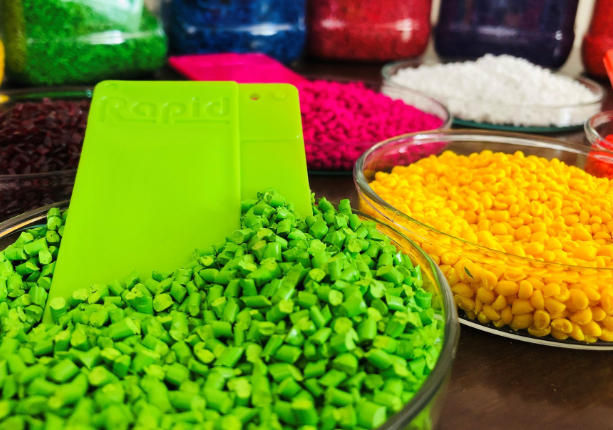
A simple plastic material can be created by assigning an aiStandardSurface shader, setting a solid Base Color, raising Specular Weight to 1.0, and using a Roughness value around 0.25–0.35 for plastic-like highlights.
For Masterbatch-style plastics, keep Transmission at 0 for opaque parts, use an IOR near 1.52–1.55, and adjust the color to match your real Masterbatch samples or brand guidelines.
To simulate translucent Masterbatch plastic, increase Transmission while keeping a colored Base or Transmission Color so the light passing through carries your Masterbatch tint. Disable Opaque on the shape node so that Arnold renders the transparency correctly.
For thin containers, enable thin-walled mode in the shader to mimic thin Masterbatch-colored films or bottles. This allows you to achieve realistic translucent plastic without modeling physically accurate wall thickness.
Glossy plastic is achieved by combining a strong Specular Weight with a moderate Roughness that softens but does not completely blur highlights. A typical starting point is Specular Weight 1.0, IOR 1.52, and Roughness around 0.25–0.3.
These settings reflect how real glossy Masterbatch-based parts, such as consumer electronics housings or cosmetic caps, appear under lighting. You can refine the look by adding subtle roughness or bump textures to avoid overly clean, artificial reflections.
Realistic imperfections come from connecting grayscale textures to the Roughness and Bump channels of the aiStandardSurface, adding fine surface detail that affects reflections and highlights. Even very small noise patterns can make a big difference in realism.
Using subtle, tileable maps can simulate the micro-texture of injection-molded Masterbatch parts, as well as tiny scratches, scuffs, or flow marks. This makes the plastic feel less “digital” and closer to industrial components seen in everyday products.
Yes, you can create a base plastic shader with correct Specular, Roughness, and Transmission settings, then duplicate it and only change the Base Color or Transmission Color to represent different Masterbatch shades. This is an efficient way to manage many SKUs.
Organizing these variants into a material library named according to Masterbatch codes or product lines allows quick reuse across many models. It also keeps renders consistent with real manufacturing catalogs and supports fast visualization for new projects.


