


close
Choose Your Site
Global
Social Media


Views: 222 Author: Rebecca Publish Time: 2026-01-20 Origin: Site


Content Menu
● Understanding Plastic In Cinema 4D
● Basic Plastic Material Setup
>> Step 1: Create A New Material
>> Step 2: Define The Color Layer
>> Step 3: Control Reflection And IOR
>> Step 4: Adjust Roughness For Finish
>> Step 5: Add Bump Or Normal Detail
● Advanced Realistic Plastic Techniques
>> Using Subsurface Scattering
>> Working With PBR And Node Materials
>> Lighting And Environment Considerations
● Managing A Masterbatch Material Library
>> Building A Reusable Preset Library
>> Versioning Colors And Finishes
● Workflow Tips For Industrial Visualization
>> Setting Up For Consistent Renders
>> FAQ
>> 1. What IOR should I use for plastic in Cinema 4D?
>> 2. How do I make shiny plastic instead of matte?
>> 3. When should I use subsurface scattering for plastic?
>> 4. How can I reuse plastic materials across many projects?
>> 5. What is the best way to preview plastic materials?
Creating a convincing plastic material in Cinema 4D is mainly about controlling color, reflections, roughness, and sometimes subsurface scattering to mimic the way real polymers and masterbatch‑based plastics behave. With a good workflow, you can build reusable plastic shaders that fit different product colors, finishes, and industrial applications for product design, packaging visualization, and engineering communication.

Plastic in 3D is usually represented with a diffuse base color, moderate reflections, and slightly softened highlights rather than perfect mirror gloss. Many realistic plastic shaders also introduce subtle roughness variations and, for thicker colored plastic, a bit of subsurface scattering to simulate the way light penetrates and scatters in pigmented masterbatch materials.
Real-world plastic color typically comes from adding masterbatch concentrates during production, so the shader should emphasize rich base color control and flexibility. In Cinema 4D, you can build a single node-based plastic material and then duplicate and recolor it to represent different masterbatch-driven color formulations for your products.
When your company focuses on innovative plastics, emphasizing masterbatch color logic in your digital materials helps your Cinema 4D visuals stay aligned with actual production recipes. This is especially valuable when presenting new materials, custom color solutions, or functional plastics to overseas buyers who depend on accurate renders for decision-making.
- In the Material Manager, double‑click to create a new standard or node material, which opens a default shader ready to edit.
- Rename it to something clear like “Plastic_Masterbatch_Base” so you can easily reuse it as a generic plastic masterbatch template in future projects.
- Open the material editor and switch the preview shape to a sphere with GI or a studio preview to better judge reflections and color behavior.
- Make sure the material is assigned to a simple object in your scene (sphere, cube, or product model) so you can evaluate the plastic masterbatch look under realistic lighting and camera framing.
Creating this first base material as a clean masterbatch starting point ensures every later variation stays physically coherent. Instead of building new shaders from scratch, you simply duplicate the base material and adjust only the color and finish.
- In the Color channel (or Base Color in a PBR workflow), choose the main plastic tone that represents the desired masterbatch pigment mixture.
- For industrial masterbatch style colors, use saturated but slightly darkened hues; this mimics concentrated colorants dispersed in a neutral polymer base.
- If using textures, you can plug a subtle noise or texture map into the color slot at very low strength to hint at micro-variation from masterbatch distribution, while still keeping the surface visually clean.
- Save several colored variants of this base plastic material to represent different masterbatch codes that your company offers for global customers.
When your business provides custom masterbatch solutions, this color stage is where you translate laboratory color data into flexible digital versions. You can match lab samples using RGB or hex targets, then store them as reusable Cinema 4D presets tied to specific material codes.
- Enable the Reflectance channel and start from a Beckmann or GGX-based layer, which is standard for plastic‑like microfacet reflections.
- Reduce reflection strength to achieve a soft but present highlight, avoiding the fully metallic look; plastics from masterbatch recipes always retain a dielectric, non-metallic character.
- Set the Fresnel type to Dielectric and use an Index of Refraction around 1.45–1.55, which is typical for many plastic materials.
- This IOR range keeps edge reflections strong while keeping front‑facing reflections moderate, matching the appearance of colored, polished masterbatch-based plastic parts.
Fine‑tuning reflection and IOR is essential because it defines how the viewer reads the product surface: too strong and it feels like metal or chrome, too weak and it looks like chalk. Plastic masterbatch surfaces live in a balanced zone of clarity and softness that communicates quality and engineering precision.
- Increase the roughness or blur parameter in the reflective layer to soften the specular highlight and remove sharp mirror reflections.
- Lower roughness values (near glossy) work for shiny injection-molded plastic, while higher values give a more matte finish, useful for technical masterbatch applications like housings and casings.
- For very realistic results, consider driving roughness with a noise map at low contrast so that the masterbatch plastic surface has micro-variation similar to fine texturing in molds.
- This micro-roughness helps avoid a “CG-perfect” look and better represents the subtle tooling and processing effects seen on real masterbatch-colored components.
By linking different roughness presets to each masterbatch family, you can present the same base color in high gloss, satin, or matte finishes. This matches the reality of industrial production, where mold texture, polishing, and process parameters significantly influence the final appearance.
- Activate the Bump or Normal channel and connect a soft noise texture to simulate micro-surface structure from manufacturing or mold texture.
- Keep bump strength low; plastic masterbatch products usually appear smooth with only gentle texture, unless they are intentionally roughened for grip or design reasons.
- You can use different bump maps to differentiate between glossy packaging plastic, finely textured consumer goods, and technical parts with functional masterbatch additives.
- Saving these variations in a material library allows quick switching between different product lines while keeping the same core masterbatch color logic.
Subtle bump or normal detail helps catch highlights in a more natural way and breaks up overly clean gradients. When you work with many SKUs or replacement parts, creating a small set of bump presets mapped to typical mold finishes (polished, fine matte, heavy texture) speeds up your Cinema 4D work dramatically.
- For thicker or slightly translucent plastic, especially light-colored masterbatch materials, add Subsurface Scattering (SSS) or a similar volume effect in your renderer.
- Set a small radius and match the scatter color to a desaturated version of the surface color, which makes the plastic feel less like paint and more like pigmented polymer.
- SSS helps simulate how light penetrates and diffuses through semi‑opaque masterbatch blends, such as toys, packaging, bottles, or industrial parts with lighter tints.
- Use moderate SSS strength to avoid waxy or overly translucent looks; the goal is a subtle glow that enhances realism without changing the overall masterbatch color identity.
SSS is especially important for applications such as translucent housings, light diffusers, or colored covers where internal light or strong backlighting plays a role. If your company offers masterbatch tailored for LED diffusion or backlit interfaces, SSS‑driven materials are crucial for realistic previews and design communication.
- Newer Cinema 4D workflows encourage using node-based materials or PBR pipelines for better control over color, roughness, and reflection in a single unified shader.
- In a node system, connect your masterbatch base color to the diffuse input, roughness maps to the reflection node, and optional SSS nodes to build more complex plastic behavior.
- Node materials make it easy to create parametric plastic masterbatch families: one master graph with exposed sliders for color, roughness, and bump that you can duplicate per product.
- This approach is ideal for a manufacturing brand that offers multiple masterbatch grades and wants consistent, accurate visualization inside Cinema 4D.
With nodes, you can add conditional logic, masks, and procedural textures to achieve details such as soft edge wear, subtle contamination, or dual-layer plastics. For a company focused on innovative materials, node graphs become a digital laboratory where new masterbatch effects can be prototyped visually before full-scale production.
- Plastic only looks convincing when lit with a suitable environment, so use HDRI lighting or a three‑point light setup to produce believable reflections and highlights on your masterbatch materials.
- Good lighting reveals the character of the roughness and SSS while showing how the masterbatch color responds under different angles and intensities.
- Add simple reflectors or softboxes in your scene to create broad, soft highlights across the plastic surface, which enhances the perceived quality of the masterbatch product.
- For catalog renders, lock a consistent studio light rig so that every masterbatch color variant is comparable in terms of gloss, shadow, and overall visual impact.
You can create separate lighting rigs for different communication goals. A neutral studio can highlight the material itself, while an environment HDRI can demonstrate how your masterbatch material behaves in real spaces such as retail, outdoor, or industrial environments.
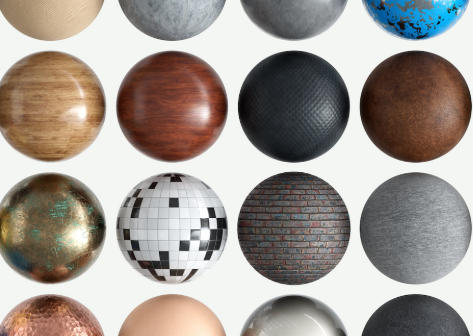
- Use Cinema 4D's content system or your own folder structure to store your best plastic materials for future projects.
- Organize presets by masterbatch family, such as “High Gloss Masterbatch,” “Matte Technical Masterbatch,” and “Transparent Masterbatch,” to streamline selection.
- By centralizing your materials, multiple projects can access the same masterbatch presets, ensuring visual consistency across all product lines and marketing visuals.
- When updating a masterbatch look, load materials from your library into active scenes so the new version replaces old shaders and keeps every project synchronized.
For a company supplying global customers, a centralized masterbatch material library becomes a visual database of your product portfolio. Designers, sales teams, and engineers can all reference the same Cinema 4D materials when preparing proposals, datasheets, and promotional imagery.
- For each masterbatch code, create two or three finish variants (high gloss, satin, matte) by only changing roughness, bump, and reflection while keeping color identical.
- This mirrors real industrial practice where the same masterbatch formulation can be used in different surface finishes depending on mold texture and processing.
- Name materials clearly, like “MB-3100_Red_Gloss,” “MB-3100_Red_Matte,” or “MB-3100_Red_SSS,” so design and engineering teams can refer to precise masterbatch visual specs.
- Maintaining a structured masterbatch library strengthens the link between digital visualizations and actual material data sheets used in production.
You can also include technical notes in your material naming or documentation, such as resin type, melt index, or UV‑stabilizer presence. This detail helps connect the Cinema 4D masterbatch materials to real-world sourcing and quality parameters in your supply chain.
- Use custom layouts and shortcuts in Cinema 4D to access material nodes, libraries, and render settings quickly when iterating on masterbatch plastic designs.
- Keeping materials and presets docked in your interface reduces friction when switching between color variants or tweaking roughness for a plastic family.
- Combine your masterbatch materials with render queue presets, so you can batch‑render multiple colorways for the same product in one pass.
- This is especially valuable when presenting a full masterbatch palette to overseas clients or updating catalogs for new plastic grades.
Beyond layout, consider building template scenes that already contain cameras, lighting rigs, and a masterbatch test object. Every time you develop a new masterbatch material, you simply drop it into the template and generate consistent preview images in a few clicks.
- Lock camera angles, focal length, and studio environment so that all your masterbatch materials are evaluated under the same visual conditions.
- Consistency allows accurate side‑by‑side comparison of different masterbatch colors and finishes in marketing brochures or online catalogs.
- Use moderate global illumination settings to capture soft bounced light on plastic surfaces without excessively long render times.
- For more complex masterbatch simulations in external engines like Corona, Redshift, or Octane, use those engines' plastic or standard surface models while keeping the same core principles of color, roughness, and SSS.
If your company exports to many regions, you can create localized versions of renders with different backgrounds, labels, or packaging languages while still relying on the same masterbatch material cores. This keeps brand identity and material appearance unified in every market.
Creating plastic material in Cinema 4D is a balance of accurate color, controlled reflections, and subtle roughness and SSS that together communicate the physical behavior of real masterbatch-colored polymers. By building well-structured node materials, tuning IOR and roughness, and organizing a dedicated masterbatch library, your team can deliver consistent, realistic plastic visuals for global customers across multiple projects and render engines. When you align digital workflows with real masterbatch formulations, Cinema 4D becomes a powerful bridge between R&D, production, and international marketing for innovative plastic materials.
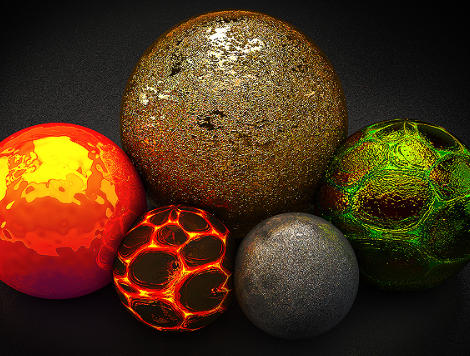
Most common plastics look correct with an IOR between 1.45 and 1.55 when using dielectric Fresnel in the Reflectance or PBR system. This range gives realistic edge reflections and works well for both glossy and matte masterbatch plastic materials in product visuals.
Lower the roughness or blur value in the reflective layer, keep reflection strength moderate, and ensure a clean bump map so highlights stay sharp. This produces a polished, injection-molded look typical of high‑gloss masterbatch packaging or consumer products such as electronic housings, cosmetic closures, and caps.
Use SSS when the plastic is thick, slightly translucent, or light-colored, such as milky or pastel masterbatch materials. It helps simulate light penetrating and diffusing through the polymer, adding depth and realism without drastically changing the base color, especially under strong backlight or internal illumination.
Create a preset library and store all your plastic and masterbatch materials inside it for easy access from any Cinema 4D scene. This keeps materials synchronized between multiple project files and ensures a consistent appearance for each masterbatch grade across product ranges, catalogs, and marketing campaigns.
Use a sphere or a simple product model under an HDRI or studio lighting setup to clearly see reflections and roughness. Consistent lighting helps you judge how each masterbatch color and finish will look in real product renders, making it easier to compare materials, approve colors, and present options to customers.
1. https://www.youtube.com/watch?v=K8z5QCuKPGE
2. https://www.youtube.com/watch?v=Da7R7uB9mbI
3. https://www.youtube.com/watch?v=Mq-f0C-qZs8
4. https://www.youtube.com/watch?v=TNpMTpdcT9s
5. https://www.youtube.com/watch?v=NoAVISzryzo
6. https://www.youtube.com/watch?v=171zAg2Wx60
7. https://www.youtube.com/watch?v=fyGZmCh8wvc
8. https://www.youtube.com/watch?v=Mw5hb-hVEh0
9. https://www.youtube.com/watch?v=-M6L1rlfgYg
10. https://help.autodesk.com/view/ARNOL/ENU/?guid=arnold_user_guide_ac_standard_surface_ac_standard_specular_html
11. https://www.reddit.com/r/Cinema4D/comments/6aixmb/any_easy_way_of_keeping_materials_throughout/
12. https://blenderartists.org/t/index-of-roughness/1124931
13. https://discourse.mcneel.com/t/pbr-material-questions-ior-opacity/116984
14. https://www.youtube.com/watch?v=rwLX51u3aro
15. http://blog.naver.com/missalz/220751030624


