


close
Choose Your Site
Global
Social Media


Views: 222 Author: Rebecca Publish Time: 2026-01-20 Origin: Site


Content Menu
● Understanding Plastic And Masterbatch
● Choosing The Right Renderer And Material System
● Basic Opaque Plastic Material In C4D
● Setting Up A Plastic Masterbatch Shader
● Controlling Color, Gloss, And Roughness
● Transparent And Translucent Plastic Materials
● Using PBR Textures For Advanced Plastic
● Building A Reusable Masterbatch Library In C4D
● Lighting And Environment For Plastic Renders
● Matching Digital Plastic To Real Masterbatch Samples
● Workflow Tips For Manufacturing And Design Teams
● FAQ
>> (1) How do I make a simple shiny plastic in C4D?
>> (2) Can I simulate different Masterbatch finishes with one material?
>> (3) How important is subsurface scattering for plastic in C4D?
>> (4) How can a Masterbatch producer use C4D in marketing?
>> (5) What is the best way to organize a Masterbatch material library?
Creating realistic plastic material in Cinema 4D (C4D) is a combination of understanding how real plastic behaves and translating that knowledge into correct shader settings for color, reflection, roughness, and sometimes transparency or subsurface scattering. When plastic is treated like a digital version of a real Masterbatch formulation, it becomes easier to build structured libraries for product visualization, packaging design, and engineering renders. This approach is especially valuable for manufacturers and material suppliers who need to communicate the look and performance of their plastic solutions to global customers.
In many industries, designers and engineers now expect digital samples before physical ones. That means your plastic material in C4D must be more than a simple colored surface; it needs to reflect how a real Masterbatch‑based plastic part would behave under light, from glossy consumer electronics shells to matte automotive interior parts and translucent packaging.

In real manufacturing, plastic products are usually made by combining a base polymer with a Masterbatch that contains concentrated pigments and additives. The Masterbatch controls color, opacity, UV resistance, flame retardancy, processing stability, antistatic performance, and many other key features. This is similar to how texture maps and material parameters work in C4D: they all contribute to the final appearance and performance of the material.
For digital design, thinking in Masterbatch terms means:
- Each plastic material in C4D represents a specific Masterbatch recipe with defined color and functional additives.
- Changing the Masterbatch in real life is equivalent to adjusting the shader's base color, roughness, and extra layers in the Reflectance channel or PBR textures.
This mindset is powerful for manufacturers and designers who need to keep many plastic colors and grades consistent across multiple product lines and renders. It also helps marketing teams explain clearly to customers which Masterbatch option is being visualized and how it will look on the final product. When your C4D material library is aligned with your Masterbatch product catalog, your digital and physical worlds are synchronized.
Before building a plastic Masterbatch library in C4D, you should select the renderer and material system you will use across projects. C4D's Standard and Physical renderers, as well as third‑party engines like Corona, Redshift, and Octane, all support realistic plastic materials but use different workflows and material user interfaces.
Key considerations include:
- With C4D's Standard/Physical renderer, traditional materials with Color, Reflectance (often Beckmann or GGX), and sometimes Transparency or Luminance are the main tools for plastic.
- With physically based rendering workflows, such as Corona Physical Material, Redshift Standard Material, or OpenPBR, it is better to work with PBR parameters and maps for plastic, because they follow predictable physical rules and are easier to share between applications.
Once a renderer is chosen, define how each digital Masterbatch will be stored: as legacy C4D materials, node‑based materials, or renderer‑specific physical materials. A consistent choice avoids confusion later and keeps your Masterbatch material library easier to maintain, especially when several artists, engineers, or salespeople are using the same assets.
Most injection‑molded consumer parts are made from opaque or semi‑opaque Masterbatch formulations, which are straightforward to simulate using the basic material channels in C4D. To create a clean opaque plastic, focus first on color and subtle reflections, avoiding overly glossy or mirror‑like surfaces that look artificial.
A practical approach for opaque plastic:
- Use a solid base color to represent the pigment concentration of your Masterbatch, but reduce saturation slightly so the result looks like molded plastic instead of pure display color.
- In the Reflectance channel, add a Beckmann or GGX layer with low reflection strength and medium roughness to simulate molded, slightly micro‑rough plastic instead of perfectly polished metal.
This simple configuration already delivers convincing plastic for many product shots such as housings, toys, caps, and technical components. For darker Masterbatch colors, slightly increase reflection intensity so edges still read clearly under studio lighting. For light or white Masterbatch, careful control of roughness helps avoid washed‑out highlights.
When treating each material as a Masterbatch‑driven recipe, the shader can be configured to mimic what a real compounder would supply to a plastics processor. Start by deciding which performance features your digital Masterbatch will represent: basic color only, or additional effects like UV stabilization, anti‑scratch surfaces, metallic pigments, pearlescent flakes, or antistatic behavior.
Steps to set up a Masterbatch‑style shader:
- Define the base polymer family, for example PP, ABS, PC, PET, PA, or PE, and translate its typical gloss level into Reflectance roughness and overall reflectivity. Different polymers naturally look different, even with the same Masterbatch color.
- Choose a pigment color that matches the physical Masterbatch swatch, then control saturation and brightness to get a realistic molded appearance rather than a pure digital color. Use subtle variation if necessary to imitate how color behaves on sharp edges and thick areas.
If needed, layer additional effects such as subtle bump maps to represent micro‑texture from mold etching or matte finishes, all still treated as part of the same Masterbatch formulation in your design library. Special‑effect Masterbatch such as metallic, glitter, wood‑grain, stone‑effect, or flip‑flop effects can be simulated with layered reflection, anisotropy, and fine noise maps that stand for particles or flakes inside the polymer. Building these as reusable Masterbatch materials saves time for future projects.
Real plastic never behaves like a perfect mirror, so reflection and roughness control are critical for realism. In C4D, plastic gloss is primarily defined by the Reflectance layer's intensity and roughness, plus the interaction with your scene lighting and HDRI environment.
Practical guidelines:
- High‑gloss Masterbatch grades used for cosmetic packaging, consumer electronics, small appliances, and premium toys should have higher reflection strength and lower roughness, but still slightly blurred highlights instead of razor‑sharp speculars.
- Matte or satin Masterbatch finishes need higher roughness values and sometimes lower reflectance strength to prevent sharp highlights. They often benefit from a micro‑bump map to break up reflections and give a soft, diffused look.
By linking these gloss levels to specific Masterbatch names or internal codes in your database, you can keep visual output consistent with real molded parts. This connection is especially helpful if your company offers both high‑gloss and low‑gloss versions of the same Masterbatch color for different applications. It also helps your sales team explain why two Masterbatch options with similar color codes may look different in the final product.
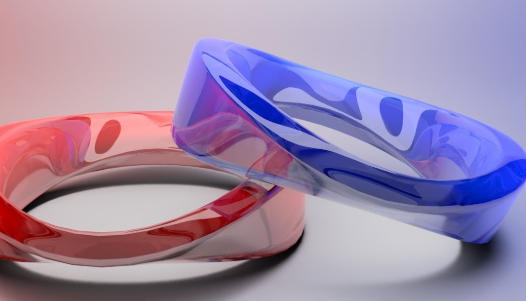
Transparent and translucent plastics require additional channels in C4D to simulate refraction and internal light scattering. Many real Masterbatch products are designed for transparent or translucent polymers where pigment loading is lower and optical clarity is critical, such as PET bottles, PC lenses, light covers, and translucent PP components.
To model translucent or transparent Masterbatch‑based plastic:
- Enable Transparency or Refraction in your material and set an appropriate index of refraction similar to real plastics. Adjust color to represent dye‑based Masterbatch rather than opaque pigment, keeping the material bright but still believable.
- For translucent plastics like frosted containers, diffuser lenses, or milky Masterbatch, use higher roughness on reflections and consider subsurface scattering or volumetric absorption to mimic light passing through partially filled polymer.
For thin packaging films or blister packs, use thin‑shell or single‑surface setups where refraction is simplified and translucency or opacity is more important than deep volumetric effects. You can maintain multiple transparent Masterbatch variants in your library, each calibrated to a different color density, haze level, and clarity.
Modern C4D pipelines often use PBR materials that rely on standardized texture maps, which helps scale your Masterbatch library into a robust digital asset system. With PBR, textures such as BaseColor, Roughness, Normal, Height, and sometimes Opacity or Transmission are combined to simulate complex plastic surfaces with scratches, micro‑texture, print, and coatings.
In a Masterbatch context, PBR can represent:
- BaseColor as the visual expression of the Masterbatch pigment blend, possibly with slight variance from processing, cooling, or additive distribution.
- Roughness and Normal maps as expressions of tooling, mold texture, and surface wear that interact with the underlying Masterbatch color, allowing the same Masterbatch to appear differently on matte and glossy tools.
Using consistent PBR maps for a given Masterbatch allows you to switch renderers and platforms while preserving a stable look across C4D, game engines, web viewers, and AR/VR. It also makes it easier to deliver digital Masterbatch samples to customers who work in different software ecosystems, since the same set of maps can be imported into multiple environments.
For industrial users and plastic material suppliers, one of the most valuable steps is building a reusable Masterbatch library directly inside C4D. This library can mirror your real product catalog and accelerate the creation of product images, packaging visuals, technical datasheet illustrations, and marketing materials.
Practical recommendations:
- Organize materials by polymer family and Masterbatch type, such as color Masterbatch, white Masterbatch, black Masterbatch, additive Masterbatch, and special‑effect grades.
- Use naming conventions that match real Masterbatch codes so designers, engineers, and marketing teams can communicate unambiguously between digital renders and physical samples.
When a new customer requests a custom Masterbatch solution, a corresponding C4D material can be created, visually validated, and added to the library, making it easy to visualize variations in color, opacity, and special effects for future projects. Over time, this digital Masterbatch library becomes a powerful tool for product development, rapid prototyping, and online customer configurators.
Even a well‑designed plastic Masterbatch shader can look flat without proper lighting and environment maps. Plastic surfaces depend on reflections and subtle gradients to reveal curvature, texture, and gloss levels, so studio‑style setups are ideal for showcasing material differences and Masterbatch variations.
Effective lighting strategies include:
- Using an HDRI environment or three‑point lighting setup with soft area lights to create stable reflections that show how the Masterbatch affects gloss, color depth, and edge definition.
- Adding controlled highlights to edges and curved surfaces so the viewer can clearly see the difference between high‑gloss and matte Masterbatch grades in the same render, which is especially important for comparison charts and marketing visuals.
By keeping lighting consistent across multiple shots, it becomes easier to compare different Masterbatch formulations and communicate subtle changes in surface appearance to customers and internal teams. This consistency is essential when preparing catalogs or online configurators with many Masterbatch options that must be shown under the same virtual conditions.
To build trust with customers, digital plastic materials must match physical Masterbatch samples as closely as possible. Because monitor calibration, lighting conditions, viewing angles, and camera settings all influence perceived color, an iterative validation process is very helpful.
A systematic approach includes:
- Rendering reference swatches in C4D under controlled lighting and comparing them to real Masterbatch chips or molded plaques photographed under similar conditions.
- Adjusting base color, saturation, gamma, and roughness step by step until the digital plastic closely resembles the physical Masterbatch across different viewing angles and background colors.
Once validated, the material can be frozen as a standard digital Masterbatch asset and reused for catalogs, online product configurators, and customer presentations, ensuring that visual expectations match actual molded parts. Doing this consistently also helps reduce back‑and‑forth communication, misinterpretation of color targets, and unnecessary sample shipments.
Companies that develop, produce, and sell Masterbatch can integrate C4D into a broader digital workflow that connects R&D, production, and marketing. A properly structured plastic material system in C4D reduces the time needed to create visuals and ensures consistent branding across different applications and regions.
Helpful workflow tips:
- Maintain a central repository of approved Masterbatch materials and restrict changes so only technical staff can modify base shaders and PBR maps. This protects the accuracy of each digital Masterbatch and avoids uncontrolled variation in customer‑facing images.
- Train designers, sales teams, and distributors to select the correct digital Masterbatch for each new project, ensuring all renders reflect realistic material options that are available in production.
With this workflow, your Masterbatch portfolio becomes a powerful digital toolkit for quickly responding to customer inquiries and demonstrating customized plastic solutions in 3D. It strengthens your position as a technology‑driven Masterbatch supplier and helps global customers make faster, more confident material decisions based on realistic visualizations.
Creating plastic material in Cinema 4D is most effective when each shader is treated as a virtual Masterbatch formulation with defined color, gloss, transparency, and performance characteristics. By choosing a suitable renderer, configuring both basic and advanced plastic shaders, and building a structured Masterbatch library, manufacturers and designers can produce realistic, consistent visualizations that align closely with real‑world products. When this digital Masterbatch system is combined with controlled lighting, PBR textures, and careful validation against physical samples, C4D becomes a strategic tool for communicating plastic innovation and custom Masterbatch solutions to global customers across packaging, automotive, consumer goods, and industrial applications.

To make a simple shiny plastic in C4D, create a material with a solid base color, then enable the Reflectance channel with a Beckmann or GGX layer. Set a moderate reflection strength and a low roughness value to produce soft but clear highlights. Apply this material to a rounded object and light it with an HDRI or area lights so that reflections reveal the form. This basic setup already mimics a glossy Masterbatch‑based plastic part used in toys, caps, and cosmetic packaging.
Yes, you can simulate multiple Masterbatch finishes from one base material by treating it as a “family” of related plastics. Keep the base color roughly the same for all finishes, but vary the roughness, reflection intensity, and micro‑bump texture to get high‑gloss, satin, and matte versions. Save each version as a separate material preset or as variations in a C4D material library. This way a single Masterbatch color code can produce several realistic finishes without rebuilding the shader from scratch each time.
Subsurface scattering is important when you want to simulate thick, slightly translucent plastics, such as vinyl toys, figurines, diffuser covers, and some packaging parts. In these cases, light penetrates the material, scatters inside, and exits near edges and thin areas, which gives a soft, “alive” appearance. Activating subsurface scattering, choosing a color close to the base color, and adjusting radius and intensity can greatly improve realism. For thin, opaque, or very dark Masterbatch plastics, subsurface scattering is less critical and can sometimes be skipped for faster render times.
A Masterbatch producer can use C4D to create a digital swatch book where each Masterbatch is shown as a realistic plastic part rendered under standardized lighting. These visual assets can be used on websites, in PDF catalogs, and during online meetings to show customers how each Masterbatch looks on different shapes and finishes. By matching digital materials to real Masterbatch chips, you give customers a reliable preview of color, gloss, and transparency, helping them select the right Masterbatch faster and with more confidence.
The best way to organize a Masterbatch material library in C4D is to mirror your real‑world product structure. Group materials by polymer type (PP, PE, ABS, PC, PET, PA, etc.), then by Masterbatch category (color, white, black, additive, special‑effect), and finally by series or code. Use clear naming conventions that include both the Masterbatch code and basic attributes such as color name and finish. Store these materials in shared libraries or asset databases so R&D, design, and sales teams can all access the same, up‑to‑date Masterbatch materials in every project.


