


close
Choose Your Site
Global
Social Media


Views: 222 Author: Rebecca Publish Time: 2026-01-20 Origin: Site


Content Menu
● Understanding Plastic And Masterbatch
● Setting Up Your 3DS Max Scene
● Choosing A Renderer And Material Type
● Core Plastic Material Parameters
● Step-By-Step: Basic Opaque Plastic
● Creating Translucent Masterbatch Plastics
● Matching Real-World Masterbatch Colors
● Building A Masterbatch Material Library
● Practical Tips For Realistic Plastic
● Workflow For Product Visualization Projects
● Advanced Effects With Special Masterbatch Types
● Integrating Digital Materials Into Customer Communication
● FAQ
>> 1. How do I make a simple glossy plastic in 3DS Max?
>> 2. How can I match a real masterbatch color accurately?
>> 3. When should I use subsurface scattering for plastic?
>> 4. Do I always need PBR texture maps for plastic?
>> 5. How can I organize a masterbatch-based material library?
Creating realistic plastic material in 3DS Max is a mix of understanding how plastic behaves in the real world and translating that behavior into shader parameters such as diffuse color, reflection, glossiness, and sometimes refraction or subsurface scattering. When you treat your digital plastic as if it comes from a real color masterbatch formulation, you achieve more believable product visuals and packaging renders.

In industrial practice, colored plastic parts are almost always made by adding a pigment or additive concentrate called masterbatch into a base polymer during processing. The masterbatch determines the final tone, opacity, and special visual effects such as pearlescent, UV-blocking, or speckled finishes.
For rendering, this means the masterbatch mainly controls the diffuse or scattering color, while the base resin and surface treatment define reflection strength, glossiness, and micro-surface imperfections. A highly loaded color masterbatch gives dense, saturated plastic, whereas lower loadings or additive masterbatch types can produce translucent or semi-opaque results.
From a design and marketing point of view, masterbatch also helps brand owners lock in a consistent identity across all plastic components. By mapping each masterbatch to a digital material in 3DS Max, product designers, engineers, and customers can share one visual language and avoid color misunderstandings.
Before building a plastic material, prepare a clean test scene so that changes are easy to judge and repeat. A well-constructed test environment helps you see how the masterbatch-based plastic behaves under controlled conditions.
- Create a few simple objects such as spheres, beveled boxes, and filleted products, because plastic behavior around edges is important.
- Add a neutral floor and a curved backdrop so reflections and shadows can be evaluated clearly from different angles.
Lighting strongly influences perceived plastic quality, so use soft studio-style lights or HDRI environments with broad highlights instead of tiny point sources. This helps you see how masterbatch-colored surfaces respond across curves, edges, and flat regions. For packaging visualization, you can even prepare several studio rigs such as a softbox setup, a high-contrast setup, and a retail shelf environment and test your plastic materials under each of them.
3DS Max supports various render engines such as V-Ray, Corona, and Arnold, and all of them can produce excellent plastic if you follow physically based principles. Most modern workflows use PBR-style controls like base color, reflection, roughness or glossiness, and sometimes dedicated subsurface scattering.
- In V-Ray for 3ds Max, you typically start with a VRayMtl, which already works well for plastic, and adjust reflection and glossiness for different finishes.
- For translucent or milky masterbatch plastics, VRayFastSSS2 or specialized SSS settings can simulate internal light scattering.
- Corona and Arnold have equivalent material types that follow similar logic: color from masterbatch, reflection from polymer surface, and roughness from finish and tooling.
The key is to treat plastic as a dielectric material and keep reflection values within realistic ranges. Whether your company supplies masterbatch or finished plastic parts, the same physically based logic applies across all render engines.
In a typical plastic shader, four parameter groups matter most: base color, reflection, roughness or glossiness, and sometimes refraction or SSS.
- Base color (diffuse): Represents the color that the masterbatch defines, often matched to a brand swatch or color standard.
- Reflection: Real plastics are usually non-metallic but quite reflective, especially when polished or molded with smooth tooling.
- Roughness/glossiness: Controls whether the plastic looks high-gloss, satin, or matte; this is critical for distinguishing masterbatch-based packaging from technical parts.
- Refraction/SSS: Used when dealing with translucent masterbatch or semi-transparent components like frosted covers and milky bottles.
When matching a real masterbatch reference, start from measured or specified color values, then adjust roughness and reflection only slightly to keep the material physically plausible. This method allows your 3DS Max library to stay aligned with your physical masterbatch catalog and simplifies communication with customers.
A simple opaque plastic is ideal for everyday consumer products such as toys, caps, closures, and containers made with solid color masterbatch. Follow these steps to build a reusable base material:
1. Create a new standard or V-Ray material in the 3DS Max Material Editor and assign it to your test object.
2. Set the base or diffuse color to your target masterbatch shade, using RGB or brand color data from the real product or from the masterbatch technical sheet.
3. Increase reflection to a moderate level, ensuring that you see clear highlights but not mirror-like behavior since plastic is still a dielectric.
4. Adjust glossiness or roughness so highlights are slightly blurred, simulating molded plastic rather than pure varnish or glass.
5. Add a subtle bump or normal map to break up perfectly smooth reflections, mimicking micro-texture from tooling or surface etching.
6. Render a few test images and check the appearance under different camera angles; pay special attention to edges, fillets, and large flat areas.
This workflow gives a physically reasonable base plastic that can be reused and tinted for many different masterbatch formulations. Once it is approved, you can duplicate the material and replace only the color to represent multiple masterbatch codes with consistent behavior.
Many packaging and lighting components use translucent or semi-opaque materials where light passes through but remains diffused. These plastics often come from specially designed translucent masterbatch that controls both color and scattering behavior.
To simulate this type of material:
- Enable refraction or translucency in your material so light can enter the volume rather than only interacting at the surface.
- Use subsurface scattering mode or a dedicated SSS material for milky or colored masterbatch, adjusting scatter radius to match part thickness.
- Tint the SSS or fog color with the same hue as your masterbatch so thicker sections look deeper and more saturated.
- Fine-tune the balance between diffuse, reflection, and SSS to avoid over-bright or washed-out areas, especially in thin parts.
Because the same masterbatch appears different in thin and thick areas, you may need to balance color intensity against SSS depth to get consistent renders across the model. This is particularly important for bottles, light covers, cosmetic packaging, and functional translucent parts that your company may produce using advanced masterbatch solutions.

When working with industrial customers, accurate color is often more important than purely artistic choices. A standard workflow connects the 3DS Max plastic shader directly to real masterbatch codes and lab data.
- Start from the supplier's masterbatch color specification, including internal or external code references, and map them to RGB or spectral data for rendering.
- Build a small material library containing typical categories such as white masterbatch, black masterbatch, standard color masterbatch, and special-effect masterbatch.
- Name each material by its masterbatch code so design teams can quickly match digital prototypes with real pellets and plaques during review.
For very demanding customers, you can create a short review procedure where rendered plastic chips are compared to physical masterbatch color chips under standardized light boxes. This simple workflow helps your 3DS Max materials stay consistent with quality-control standards in your laboratory and in your customers' plants.
For more complex surfaces such as textured housings, recycled plastics, or technical parts, PBR texture sets provide detailed information for realistic shading. Typical plastic PBR packs include albedo, normal, roughness, displacement, and sometimes ambient occlusion maps tuned for 3D applications like 3DS Max.
- Plug the albedo map into the base color channel and tint it slightly if you want to reference a specific masterbatch family.
- Use the roughness or glossiness map to drive varied highlights across the surface, adding realism to injection or extrusion marks.
- Apply normal and displacement maps sparingly so that plastic edges and logos retain crispness while large areas gain subtle detail.
Because plastic often covers large visible areas in a scene, texture optimization is important; high-resolution maps should be reserved for hero assets and close-ups. For a company that exports masterbatch and plastic products globally, these PBR textures can also be shared with customers so they can render your materials accurately in their own 3D environments.
For a company delivering customized plastic material solutions, a reusable library in 3DS Max becomes a powerful communication and marketing tool. It can represent your masterbatch range and finished plastic materials across different product lines.
- Organize materials into families: opaque color masterbatch, white masterbatch, black masterbatch, translucent masterbatch, additive masterbatch with visual effects, and speckled or marble masterbatch.
- Store predefined reflection and roughness settings for each family so you can quickly apply them to new models while keeping consistent visual behavior.
- Prepare standardized naming rules such as “Family_MaterialType_MasterbatchCode_Finish” so that designers, sales engineers, and customers can understand your materials easily.
In addition, document which rendered materials correspond to which physical masterbatch products so your sales and engineering teams can share consistent visuals across catalogs, datasheets, and packaging configurators. Over time, your 3DS Max library becomes a digital mirror of your masterbatch portfolio and helps shorten customer decision cycles.
Several small details can significantly improve plastic realism in 3DS Max and make your masterbatch-based materials look more convincing.
- Use environment maps or softbox rigs that create broad highlights, since plastic depends heavily on reflections to communicate gloss and form.
- Introduce very subtle color variation, noise, or speckling where real masterbatch dispersion is intentionally non-uniform, such as marble or granite-like effects.
- Calibrate exposure and white balance in your renderer so masterbatch colors are not distorted by overly warm or cool lighting.
- Add very small surface imperfections like fine scratches or slight orange-peel structure for high-gloss plastic, especially on automotive and appliance parts.
These refinements ensure that your digital plastics hold up under close-up inspection and in high-resolution marketing imagery. They also showcase the advantages of high-performance masterbatch solutions compared to cheaper, less controlled color systems.
In a typical product visualization pipeline, mastering plastic and masterbatch in 3DS Max follows a repeatable sequence that can be formalized inside your company.
- Collect masterbatch color codes, surface finish specifications, and reference photos from the customer or internal lab.
- Build base plastic materials and PBR textures matching each masterbatch family needed in the project.
- Apply materials to CAD or modeled geometry, checking how each masterbatch behaves under your standard studio lighting.
- Render test images and adjust only where necessary, keeping masterbatch color mapping consistent across all product variants.
- Save final materials into your central library, tagged by product series, region, and customer requirements.
Once this pipeline is established, you can create entire product lines, color ranges, and packaging families quickly while maintaining consistent masterbatch representation for global customers. This efficiency is especially valuable for an innovation-driven plastic material supplier that needs to respond fast to international brand owners.
Beyond standard colors, many projects require special visual or functional effects, which are usually implemented through special masterbatch types. These effects can also be simulated in 3DS Max with appropriate shader techniques.
- Pearlescent and metallic masterbatch: Combine colored base layers with anisotropic or multi-layer reflections and subtle noise in roughness to mimic flake behavior.
- Glow-in-the-dark or fluorescent masterbatch: Use strong emissive components for marketing visuals, while keeping a realistic diffuse and reflection setup for regular lighting.
- Recycled-look masterbatch: Add color variation, speckles, and rougher surface micro-texture to communicate a sustainable, recycled aesthetic.
By building a dedicated material template for each special masterbatch family, your 3DS Max library can demonstrate both the visual effect and the branding potential of these advanced formulations.
When your masterbatch and plastic material library in 3DS Max is well-structured, it becomes easy to integrate digital materials into customer communication. Sales teams can request quick renderings to showcase new masterbatch colors on actual product shapes instead of flat color chips.
Designers can send customers 3D previews of different masterbatch options applied to the same model, allowing brand managers to evaluate design directions rapidly. Technical teams can also use these materials to simulate how color and finish influence readability of logos, labels, and embossed details.
In many cases, your digital masterbatch-based plastic materials become an important part of your service package, not only supporting internal design but also acting as a powerful marketing and sales tool.
Creating plastic material in 3DS Max is most effective when it is treated as a digital extension of real industrial materials built from specific masterbatch formulations. By carefully controlling base color, reflection, roughness, and, where needed, subsurface scattering, you can simulate both opaque and translucent masterbatch plastics for product design, packaging, and technical components. Building a structured masterbatch-oriented material library in 3DS Max helps your company deliver consistent, realistic visuals across marketing, engineering communication, and customer-specific projects worldwide. As your masterbatch portfolio grows, this digital library will continue to support innovation, shorten development cycles, and strengthen collaboration with global customers.
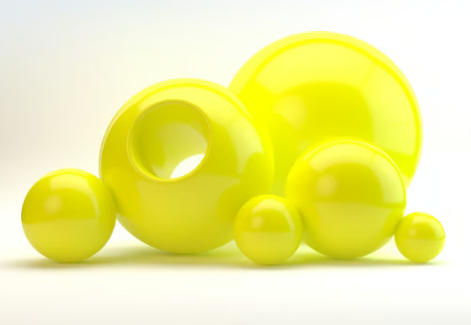
A simple glossy plastic starts with a standard or V-Ray material using a solid diffuse color taken from your target masterbatch reference. Add moderate reflection and low roughness so highlights are strong but slightly blurred, then assign this material to your object under neutral studio lighting.
To match a real masterbatch, use color values provided by the masterbatch supplier or internal lab data rather than guessing RGB values by eye. Then lock reflection and roughness within realistic plastic ranges and only fine-tune color within a narrow band so digital samples remain faithful to the physical masterbatch.
Subsurface scattering is useful for milky, frosted, or translucent masterbatch plastics where light penetrates the surface and scatters inside the volume. In V-Ray and similar engines, SSS or dedicated translucent modes help simulate the depth and softness seen in packaging, diffusers, and semi-opaque components colored with special masterbatch.
Simple injection-molded parts colored with uniform masterbatch can work well with only flat color, reflection, and roughness controls. PBR texture maps become important when surfaces have visible texture, wear, or complex finishes, such as technical housings, recycled plastic, or special-effect masterbatch with speckles and patterns.
Organize your library by masterbatch family, such as white, black, standard color, translucent, and special-effect masterbatch materials. Name each material with its masterbatch code and keep consistent reflection and roughness templates so 3DS Max projects share the same visual language across different products and customers.
1. https://www.leon51.org/post/how-to-create-realistic-plastic-materials-in-3ds-max-v-ray-tutorial
2. https://documentation.chaos.com/space/VMAX/113575545/How+to+Make+Translucent+Plastic
3. https://www.dgyx-plastic.com/how-to-create-plastic-material-in-vray.html
4. https://cgaxis.com/cgaxis_preview/Physical_6_Plastic/
5. https://aitextured.com/articles/plastic_seamless_textures_complete_pbr_guide_for_3d_architecture_and_games.html
6. https://www.youtube.com/watch?v=HDcOd09Q_mY
7. https://www.youtube.com/watch?v=adPUJ42dy-g
8. https://www.youtube.com/watch?v=QJPihI2C4nw


