


close
Choose Your Site
Global
Social Media


Views: 222 Author: Rebecca Publish Time: 2026-01-15 Origin: Site


Content Menu
● Preparing Your Maya 2017 Scene
● Creating A Base Hard Plastic Shader
● Simulating Masterbatch Color And Additives
● Step-By-Step: Hard Plastic Material In Maya 2017
>> 3. Assign an aiStandardSurface material
>> 4. Configure base color and diffuse body
>> 5. Tune specular reflection for a hard finish
>> 6. Add surface imperfections
>> 7. Optional: subtle subsurface scattering
>> 8. Fine-tune for different masterbatch effects
● Using Masterbatch Concepts For Variants
● Rendering Tips For Realistic Hard Plastic
● FAQ
>> 1. How do I quickly make a basic hard plastic material in Maya 2017?
>> 2. How can I simulate different masterbatch colors without rebuilding the shader?
>> 3. Why does my plastic material look too metallic or fake?
>> 4. Can I use textures to enhance hard plastic realism?
>> 5. How does masterbatch affect how I should light hard plastic in renders?
In the plastics industry, hard plastic parts are often made by injection molding or extrusion using base polymers modified with masterbatch to achieve specific colors and functional properties. A masterbatch is a concentrated mixture of pigments or additives in a carrier resin that is later diluted into the main polymer, giving the final plastic controlled color, gloss, stiffness, or UV resistance.[5][6][4]
Using masterbatch lets manufacturers change the visual appearance of hard plastic—opacity, shade, surface feel—without reformulating the base polymer every time. When building a material in Maya 2017, thinking like a masterbatch formulator helps: you “dose” your shader with color, roughness, and other parameters the way engineers dose pellets on a production line.[4][5]

Before building the hard plastic material, set up a simple test scene to judge realism accurately. A neutral studio-like HDRI environment and a few area lights make it easier to read reflections on your plastic surface and see how your simulated masterbatch color behaves under different angles.[3][7]
Keep real-world scale in mind, because Arnold's shading and effects such as subtle subsurface scattering respond to physical units. Hard plastic objects should be modeled in centimeters or millimeters comparable to actual molded parts, as if they were made from a masterbatch-colored polypropylene or ABS housing.[2][4]
In Maya 2017, Arnold uses the aiStandardSurface shader (called Standard Surface in newer documentation) as the primary material for plastics. For a hard plastic look, you start with a diffuse base color—representing your masterbatch pigment—and then tune specular and roughness values to mimic the slightly glossy finish typical of injection-molded parts.[7][1][2][3]
A practical workflow is:
- Assign aiStandardSurface to your model and rename it clearly, for example “HardPlastic_MasterbatchRed”.[1][3]
- Set Base Weight to around 0.6–0.8 to keep some diffuse body color while leaving room for strong specular highlights.[2][7]
- Choose a saturated Base Color corresponding to the desired masterbatch tone, such as deep blue or ABS grey common in consumer housings.[5][4]
The key characteristic of hard plastic is a clean but slightly softened reflection, making it look molded rather than metallic or rubbery. Start with Specular Weight about 0.8, Specular Roughness around 0.25–0.35, and an IOR of roughly 1.45–1.5 to mimic the way light reflects on masterbatch-colored thermoplastics.[3][2]
In manufacturing, masterbatch is added at different let-down ratios to fine-tune color strength and functional additives such as UV stabilizers, anti-static agents, or matting components. In Maya, the equivalent is controlling color intensity, saturation, and roughness maps to approximate how highly loaded or lightly loaded masterbatch affects the final plastic appearance.[6][4][5]
To emulate a vividly pigmented masterbatch, use a more saturated Base Color and slightly lower Base Weight so specular reflections remain visible. For softer, lightly tinted parts where less masterbatch is used, raise Base Weight a bit and desaturate the color, giving a more pastel, semi-matte appearance.[6][4][5]
Add micro-roughness and subtle bump details to simulate the fine surface texture created by mold polish level and masterbatch dispersion. A single greyscale texture can drive both roughness and bump through Arnold's utility nodes, producing realistic imperfections that break up reflections like on real injection-molded, masterbatch-modified parts.[7][2]
The following step-by-step process outlines how to build a convincing hard plastic material in Maya 2017 using Arnold, with an emphasis on masterbatch-inspired color control.[1][3]
- Model or import a simple shape such as a beveled cube, sphere, or small housing with fillets and screw bosses.[8]
- Ensure the model is smooth enough to show highlight roll-off, as real masterbatch-colored plastics often have gentle curvature that catches light.[8][4]
- Add an HDRI environment for overall illumination and reflections, then a key area light and one or two rim lights for clean highlights.[3][7]
- Avoid overly contrasty or colored HDRIs while tuning the shader; masterbatch color evaluation is easier in neutral, studio-like lighting.[3]
- Right-click the object, assign a new aiStandardSurface, and rename it to reflect the intended masterbatch (for example “Masterbatch_Black_HardPlastic”).[1][3]
- Confirm Arnold is the active renderer so you can preview the material in the IPR window.[7][3]
- Set Base Weight to about 0.7 so the plastic keeps a strong body color while still allowing specular highlights to dominate the perception of hardness.[2]
- Choose a Base Color matching a typical masterbatch swatch, such as RAL-type industrial colors used in housings, connectors, or packaging components.[4][5]
- Set Specular Weight around 0.8, with a Specular Roughness near 0.3 for a semi-gloss look common in masterbatch-colored injection-molded parts.[2]
- Use an IOR near 1.5 to simulate plastic; this value distinguishes hard plastic from metal while keeping reflections crisp and believable.[2][3]
- Load a greyscale texture and connect it to Specular Roughness through a remap node, mimicking the subtle texture and micro-scratches present on real masterbatch-based housings.[2]
- Use the same map through a bump node, with low strength, to break perfect smoothness and avoid a toy-like shader; this simulates how masterbatch and mold finish combine to produce tiny surface variations.[7][2]
- Some plastics, especially those made with certain white or pastel masterbatches, show a touch of light penetration at thin edges.[2]
- Add a small SSS Weight and a radius tuned to your scene scale to introduce a faint halo at edges, making the hard plastic appear more physically plausible without looking like wax or rubber.[9][2]
- For glossy, high-end consumer shells with premium color masterbatch, reduce roughness slightly and boost Specular Weight for sharper, more defined highlights.[5][2]
- For technical components using additive masterbatch that increases stiffness and reduces gloss, increase Roughness and slightly lower Specular Weight to simulate a more matte, functional finish.[4][5]
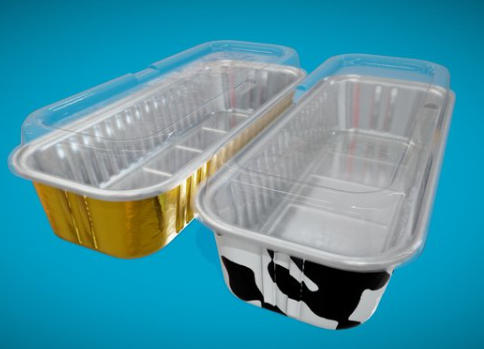
One powerful approach is to treat each shader as a digital counterpart of a physical masterbatch formulation. This lets a design team quickly iterate on color and feel in Maya 2017 while staying consistent with what the factory can achieve using specific masterbatch suppliers and let-down ratios.[6][5]
You can create a library of aiStandardSurface presets named after masterbatch codes—such as “MB-Blue-23” or “MB-ABS-Grey”—and reuse them across projects. Each preset can store base color, roughness, and subtle SSS values that match what the real masterbatch will produce, ensuring more accurate visualization before tooling and molding.[5][6][4]
To simulate additive masterbatch that modifies mechanical or optical properties, link utility maps to specular and SSS parameters. For example, an anti-glare additive masterbatch can be represented by higher roughness, while a clarifying masterbatch for translucent plastics corresponds to lower roughness and slightly adjusted transmission settings in your shader.[5][2]
Realistic rendering is not only about the shader; it depends heavily on lighting, environment, and camera setup. Hard plastic masterbatch-based parts should show clean, readable reflections that follow the form and emphasize edges, fillets, and curvature in your model.[3][2]
Use region rendering to focus on problem areas such as corners and edges where highlights can look too sharp or too blurry. If the plastic appears overly metallic, lower Specular Weight or adjust Base Weight, and ensure there is no metallic setting enabled; masterbatch-colored plastics should have distinct, non-metallic reflections.[3][2]
Adjust your HDRI rotation so key reflections show the form of the object instead of creating random hot spots. For product-style shots of masterbatch-colored housings, add large, soft rectangular lights that mimic light tents used in real product photography, enhancing the perception of a smooth, molded hard plastic surface.[7][3]
Creating a hard plastic material in Maya 2017 is a matter of combining accurate aiStandardSurface settings with realistic lighting, careful attention to roughness and reflection, and an understanding of how masterbatch coloration influences the look of real polymers. By treating each shader as the digital twin of a masterbatch formulation, you can build a reusable library of materials that mirror factory-ready color and performance, ensuring that your CG visuals align closely with production parts.[4][1][5][2]
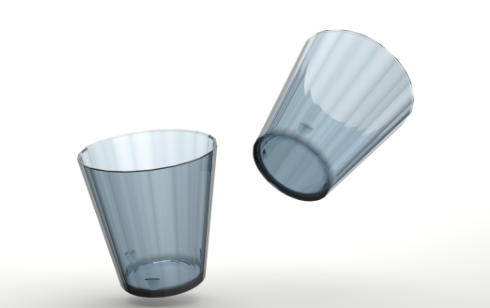
The fastest method is to assign an aiStandardSurface shader, set Base Weight around 0.7, choose a solid color for the body, and dial Specular Weight to about 0.8 with Roughness near 0.3. This produces a clean, hard plastic look similar to a molded, masterbatch-colored housing that works well for many product visualizations.[1][3][2]
Create one well-tuned hard plastic material and then duplicate it, changing only the Base Color to match different masterbatch swatches while keeping specular and roughness the same. This mimics changing masterbatch color in production while preserving the same surface finish, making it easy to preview multiple colorways in Maya 2017.[4][5]
If the material looks metallic, the specular may be too strong or roughness too low, making reflections unnaturally sharp for plastic. Reducing Specular Weight slightly, increasing Roughness, and checking that the shader is set up as a non-metallic plastic aligned with masterbatch-colored polymers will restore realism.[3][2]
Yes, a single greyscale texture can drive both roughness and bump to emulate subtle imperfections on masterbatch-based injection-molded parts. This breaks up perfectly smooth reflections and makes the hard plastic feel more like a real molded object rather than a sterile CG asset.[7][2]
Masterbatch defines the base color and some optical behavior, so balanced, neutral lighting is important to judge saturation and gloss accurately. Using controlled HDRI environments and soft area lights reveals how the masterbatch-inspired shader responds to light, helping you validate that the digital material matches the intended production plastic.[5][3]
[1](https://www.youtube.com/watch?v=fyPLh6A2Lcc)
[2](https://www.youtube.com/watch?v=kNIidmQb7OY)
[3](https://www.youtube.com/watch?v=0PIZeZP3Pog)
[4](https://en.wikipedia.org/wiki/Masterbatch)
[5](https://deltatecnic.com/complete-guide-to-masterbatch/)
[6](https://www.ampacet.com/faqs/masterbatch/)
[7](https://www.youtube.com/playlist?list=PL6jLkFksyoUVMbhX34rvLenkwDVl7DyWQ)
[8](https://www.youtube.com/watch?v=14m0VQ7Kpw4)
[9](https://www.reddit.com/r/Maya/comments/1k9nm41/is_there_any_way_i_can_make_this_clear_plastic/)
[10](https://www.youtube.com/watch?v=FZLvGcB_zJM)
[11](https://www.autodesk.com/support/technical/article/caas/sfdcarticles/sfdcarticles/How-to-render-transparent-glass-in-Maya-with-Arnold.html)
[12](https://documentation.chaos.com/space/VMAYA/111741654/How+to+Make+Translucent+Plastic)
[13](https://www.facebook.com/groups/410933255642572/posts/1413344308734790/)
[14](https://www.youtube.com/watch?v=wTBS9iEnY9I)
[15](https://www.facebook.com/groups/410933255642572/posts/2470871332982077/)


