


close
Choose Your Site
Global
Social Media


Views: 222 Author: Rebecca Publish Time: 2026-01-08 Origin: Site


Content Menu
● Understanding Plastic Optics And Masterbatch Color
● Basic V-Ray Plastic Material Workflow
● Matching Real-World Masterbatch Colors
● Creating Translucent And Transparent Plastics
● Surface Detail, Roughness, And Bump
● Lighting, HDRI, And Scene Context
● Building A Reusable Plastic And Masterbatch Library
● FAQ
>> 1. What IOR should I use for plastic materials in V-Ray?
>> 2. How do I match a real masterbatch color in V-Ray?
>> 3. How can I create translucent masterbatch effects?
>> 4. Why does my plastic look too reflective or metallic?
>> 5. How do I add subtle texture without ruining smooth plastic?
Creating a realistic plastic material in V-Ray starts with understanding how light interacts with polymers and how masterbatch pigmentation influences appearance. By tuning diffuse color, reflections, glossiness, transparency, and subsurface scattering, V-Ray can simulate everything from glossy ABS housings to translucent masterbatch-based packaging.[2][3][1]
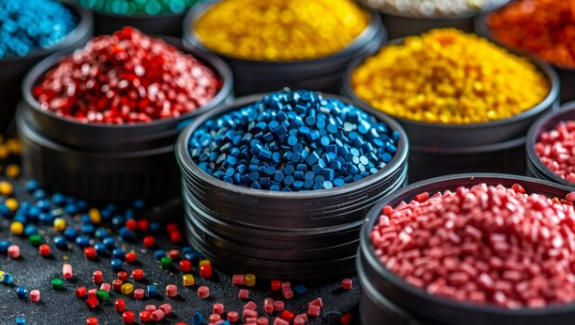
Plastics are generally dielectrics with an index of refraction between about 1.45 and 2.4, so Fresnel reflections and correct IOR values are essential for believable V-Ray materials. When a masterbatch is dispersed in the resin, the pigment combination, loading rate, and carrier resin define how saturated, opaque, or translucent the final plastic looks.[3][5][6][1]
In practical rendering, this means the masterbatch tone and concentration mainly drive the diffuse or subsurface color, while the base polymer and surface finish drive reflection and glossiness. Highly loaded color masterbatch produces dense, saturated plastic, while lower loadings or additive masterbatches can create softer, semi-transparent or functional visual effects such as UV-blocking or pearlescent finishes.[4][6][3]
A basic opaque plastic material in V-Ray can be built with a standard V-Ray Material using a colored diffuse layer, Fresnel reflections, and a small amount of bump or roughness variation. For most plastics, setting reflection IOR around 1.45–1.55, enabling Fresnel, and using mid-to-high reflection glossiness yields a clean, molded plastic appearance.[7][1][2]
A straightforward workflow is:
- Create a V-Ray Material and assign it to the object in your DCC application such as 3ds Max, Maya, SketchUp, or Blender.[2][4]
- Choose a diffuse color that matches the target masterbatch shade, using brand color values or measured spectral data where available for critical projects.[3][4]
- Enable Fresnel reflections with an IOR typical of plastic and keep reflection color close to white for physically plausible behavior.[5][1]
- Set reflection glossiness high (near 0.8–0.95) for smooth plastic, lowering it slightly to simulate micro-textured or sandblasted masterbatch surfaces.[5][2]
- Add a subtle bump or normal map, or use a glossiness texture, to break the perfectly smooth highlights that make renders look artificial.[1][2]
This approach works well for colored masterbatch-based housings, caps, closures, toys, and many injection-molded consumer goods where the plastic is opaque.[4][2]
Accurately reproducing masterbatch colors in V-Ray is crucial for product visualization, packaging approvals, and OEM communication. Because the same masterbatch can look different in thin and thick sections, you often need to balance diffuse or subsurface color against scene lighting and geometry thickness.[6][3][4]
Practical strategies for connecting V-Ray materials to physical masterbatch include:
- Sampling brand or masterbatch colors with precise RGB or spectral data from lab measurements, then converting to the working color space used by your renderer.[7][3]
- Testing multiple swatches in one scene to see how the masterbatch color behaves under different light angles and HDRI environments, just as real plaques are viewed under multiple light sources.[3][4]
- Creating a small library of V-Ray plastic presets corresponding to key masterbatch categories such as standard color masterbatch, white masterbatch, black masterbatch, and functional masterbatch with special effects.[6][3]
- Using texture maps to introduce subtle inhomogeneity if the masterbatch dispersion in the real product is intentionally variegated, for example in marble or speckled masterbatch applications.[8][4]
By treating masterbatch as the core color specification rather than a vague RGB choice, rendering teams can support industrial designers, molders, and brand owners with more reliable digital prototypes.[4][3]
Translucent and transparent plastics such as frosted packaging, polycarbonate covers, and semi-opaque masterbatch effects require refraction and sometimes subsurface scattering. In V-Ray, this is typically handled with VRay Material refraction or with VRayFastSSS2 for more advanced scattering control.[9][6][3]
Key steps for translucent plastic:
- Enable refraction and increase its color towards white to make the material more transparent, while using refraction glossiness below 1.0 to create a frosted or diffused look.[10][5]
- Set the IOR near common plastic values (around 1.5) so that light bends realistically through lenses, covers, or translucent masterbatch panels.[10][1]
- For milky or colored translucent masterbatch, use VRayFastSSS2 or a translucency mode to simulate scattering inside the volume instead of relying only on surface refraction.[9][3]
- Optionally use fog color to tint the interior of the plastic and mimic how pigment from the masterbatch accumulates in thick regions of a part.[2][10]
This approach is well suited to lighting diffusers, translucent cosmetic packaging, and masterbatch-based effects like smoky, amber, or neon translucent plastics.[6][3]
Even perfectly polished plastic is rarely mathematically smooth, so micro-scratches, texture, and manufacturing marks are essential for realism. Using roughness and bump maps in V-Ray lets you simulate different masterbatch-filled surfaces such as matte, satin, or micro-structured finishes.[1][5][2]
Some effective practices include:
- Linking reflection and refraction glossiness textures so rough areas of the plastic affect both reflection blurring and light transmission consistently.[5][7]
- Using a very subtle noise map in the bump channel to break up mirror-like highlights on glossy masterbatch surfaces without making them look damaged.[1][2]
- Adding directional bump or normal maps to replicate brushed or textured molds, which often interact with colored masterbatch to produce strong anisotropic sheen.[8][2]
- Keeping the intensity of all these effects low, because plastic usually shows softer micro-structure than heavily weathered metal or stone.[5][1]
By combining precise masterbatch color control with well-tuned surface maps, V-Ray plastic materials hold up under close-up, high-resolution renders.[2][4]
Plastic materials are highly sensitive to lighting, reflections, and environment maps, so the same shader can appear radically different across scenes. Studio-style HDRIs, soft boxes, and area lights help reveal the subtle gloss and color of masterbatch-colored parts in a controlled way.[11][8][2]
For consistent results:
- Test your plastic materials in a simple studio setup with neutral background, key light, fill light, and a suitable HDRI that includes large soft highlights.[11][2]
- Check how the masterbatch color looks under both warm and cool lighting so you understand its behavior in retail, outdoor, and industrial environments.[8][4]
- Adjust camera exposure and white balance carefully; overexposed renders can wash out deep masterbatch tones and underexposed renders can make them look too dark or dirty.[4][2]
- Use region rendering or interactive rendering to iterate quickly on reflection, roughness, and translucency while observing changes in real time.[12][2]
Once the lighting is reliable, any remaining mismatch between digital and physical masterbatch samples usually comes from color values, scattering depth, or fog settings rather than from global illumination.[3][6]
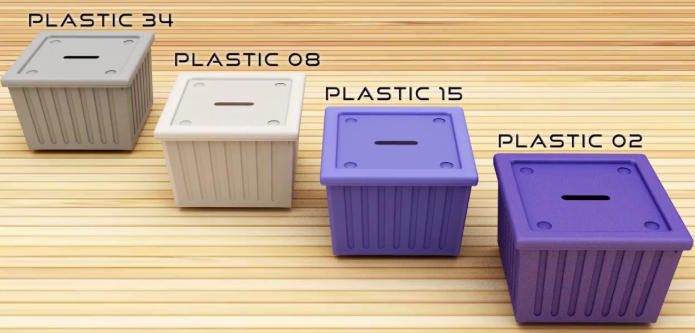
For design studios and manufacturing companies, building a reusable V-Ray masterbatch and plastic material library dramatically speeds up future projects. Each saved material can represent a specific masterbatch grade or color family, with documented parameters and links to physical material codes.[6][3][4]
A robust library strategy can include:
- Grouping shaders into families: opaque color masterbatch, white masterbatch, black masterbatch, translucent masterbatch, additive masterbatch (UV, anti-static, flame retardant visual variants), and special-effect masterbatch.[3][6]
- Naming materials according to internal or supplier masterbatch codes so designers and engineers can quickly match digital prototypes to real pellets and plaques.[4][3]
- Storing example render scenes that show each masterbatch under standardized lighting, making approvals and cross-team communication more efficient.[8][4]
- Regularly updating IOR, color, and scattering parameters as measurement data improves or production-grade resin and masterbatch formulations evolve.[6][3]
With such a library, creating a new product visualization often becomes a matter of assigning existing masterbatch-based plastic presets rather than rebuilding materials from scratch for each model.[3][4]
Creating plastic materials in V-Ray combines physically based shading, careful color management, and subtle surface detailing to capture the behavior of real polymers. By anchoring every material to a clear masterbatch reference, artists and manufacturers can collaborate on digital prototypes that are both visually convincing and tightly aligned with production materials.[1][2][4][3]
Connecting masterbatch data to V-Ray through diffuse, translucency, and fog settings makes it possible to simulate everything from dense opaque housings to soft, glowing translucent packaging. When combined with consistent lighting and a well-organized material library, these techniques turn V-Ray into a powerful tool for communicating plastic design intent across global supply chains.[2][4][6][3]
Most common plastics render well with an index of refraction between about 1.45 and 1.55, which gives realistic Fresnel reflections without looking like glass. For special high-density polymers or thick transparent parts, slightly higher IOR values may be tested, but large deviations are rarely needed.[7][5][1]
Start from measured color values or official brand references, then set the diffuse or subsurface color to match that data in your scene's color space. Render the same geometry under consistent lighting and iteratively adjust saturation and brightness until the V-Ray plastic matches the physical masterbatch sample as closely as possible.[4][6][3]
Enable refraction in the V-Ray Material and use slightly blurred refraction glossiness, or switch to VRayFastSSS2 or a translucency mode to simulate scattering inside the plastic. Tint the interior of the material using fog or subsurface color to mimic how colored masterbatch concentrates in thicker sections of the part.[9][10][3]
If plastic appears metallic, reflection color is probably too strong or Fresnel is disabled, making reflections uniform at all viewing angles. Enabling Fresnel reflections, using a realistic plastic IOR, and avoiding overly bright reflection colors will bring the shader back to a non-metallic, masterbatch-based appearance.[7][5][1]
Use very low-intensity bump or normal maps and high reflection glossiness values so that surface variation is visible only in highlights, not as strong noise. Simple noise maps or micro-scratch textures scaled appropriately can break up perfect reflections while preserving the overall smooth, injection-molded masterbatch look.[5][1][2]
[1](https://resources.turbosquid.com/library-tutorials/plastic/)
[2](https://www.youtube.com/watch?v=QJPihI2C4nw)
[3](https://documentation.chaos.com/space/VMAX/113575545/How+to+Make+Translucent+Plastic)
[4](https://www.cgarchitect.com/features/articles/1164d3cc-plastic-material-in-v-ray-for-blender)
[5](https://blog.turbosquid.com/2014/04/21/turbotips-v-ray-material-part-3-refraction/)
[6](https://documentation.chaos.com/space/VMAYA/111741654/How+to+Make+Translucent+Plastic)
[7](https://documentation.chaos.com/space/VC4D/116855144/V-Ray+Material+Reflection)
[8](https://www.youtube.com/watch?v=3UlE8muJwig)
[9](https://www.youtube.com/watch?v=8VXKjXfazj0)
[10](https://forums.chaos.com/forum/v-ray-for-3ds-max-forums/v-ray-for-3ds-max-general/50361-plastic-refractive-shader)
[11](https://www.youtube.com/playlist?list=PL0UcbhoHToGvzn0Obew-iw53RkqnfpPIq)
[12](https://www.youtube.com/watch?v=aQlZb04lbP8)
[13](https://www.youtube.com/watch?v=adPUJ42dy-g)
[14](https://www.youtube.com/watch?v=qNFyVc_vjoE)
[15](https://macdesignstudio.wordpress.com/2012/01/18/vray-materials-part-4-refractions/)
[16](https://www.youtube.com/watch?v=70pb4FMT-Z8)
[17](https://www.youtube.com/watch?v=2InBaBq0Tgc)
[18](https://forums.cgarchitect.com/topic/66102-plastic-material-help/)
[19](https://forums.chaos.com/forum/v-ray-for-3ds-max-forums/v-ray-for-3ds-max-general/74852-help-with-translucent-plastic-material-needed)
[20](https://discourse.mcneel.com/t/please-help-how-to-create-polycarbonate-corrugated-translucent-material-for-rhino-7-vray/129510)


