


close
Choose Your Site
Global
Social Media


Views: 222 Author: Rebecca Publish Time: 2026-01-05 Origin: Site


Content Menu
● Understanding Plastic Materials and Masterbatch
● Step 1: Setting Up the Scene
● Step 2: Creating a Base Plastic Material
● Step 3: Introducing Masterbatch Characteristics
● Step 4: Adjusting Reflection and Refraction
● Step 5: Introducing Subsurface Scattering (SSS)
● Step 6: Adding Surface Imperfections
● Step 7: Lighting and Rendering the Plastic Material
● Step 8: Optimizing for Real-Time and Product Visualization
● Advanced Techniques: Using V-Ray and Arnold for Plastic Realism
>> In V-Ray:
>> In Arnold:
● Step 9: Masterbatch Simulation Techniques
● FAQ
>> 1. What is Masterbatch in plastic materials?
>> 2. How does Masterbatch affect 3D rendering in 3DS Max?
>> 3. Which renderer is best for plastic materials?
>> 4. Can I create translucent plastic in 3DS Max?
>> 5. What are the common Masterbatch colors for industrial plastics?
Designing realistic plastic materials in 3DS Max is an essential skill for 3D designers, industrial modelers, and product visualization artists. Especially in industries where material accuracy matters—such as manufacturing and product packaging—creating lifelike plastic surfaces helps visualize how products like Masterbatch-based plastics behave under lighting and environmental conditions. This guide will explain in detail how to create convincing plastic shaders using 3DS Max tools, how Masterbatch affects the look and feel of those plastics, and how to enhance realism through physical material settings.
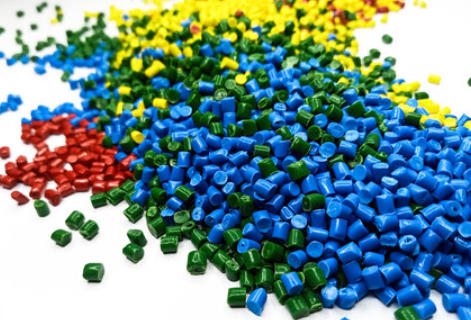
Plastic is a synthetic material engineered from polymers, often customized for specific physical or aesthetic properties. In real-world applications, its characteristics—color, gloss, transparency, density—are influenced by Masterbatch, an additive containing concentrated pigments or functional materials mixed into a plastic base.
In 3D visualization, replicating plastic's true appearance requires understanding how light interacts with it. Since every piece of real-world plastic has unique reflections and subsurface qualities, the 3D designer must balance diffuse color, reflection, bump, and glossiness parameters to simulate those physical responses accurately.
For instance, a color Masterbatch used in polyethylene packaging might produce high-opacity tones, while transparent Masterbatch in polycarbonate components adds depth and inner light diffusion. These subtleties are key to creating believable materials in 3DS Max.
Before creating your plastic material, prepare the 3DS Max workspace properly.
1. Start a new project – Open 3DS Max and create a simple object, such as a sphere, box, or product shape.
2. Apply real-world scale – Plastic material simulation relies heavily on realistic scaling. Set your units to centimeters or millimeters depending on your design purpose.
3. Adjust lighting – Use a three-point lighting setup or HDRI maps for balanced reflections. Lighting is the foundation for accurate visualization of any Masterbatch-based surface.
4. Configure rendering engine – Switch to a physically based renderer like Arnold or V-Ray. Both renderers can interpret glossy, translucent, and colored plastics effectively.
At this stage, you're setting the foundation for precise reflections and surface appearance.
Now, let's create a simple base plastic material in 3DS Max.
1. Open the Material Editor by pressing `M`.
2. Choose a Physical Material (under Standard Surface Materials). This type is optimized for physically accurate rendering.
3. Rename the material—for example, *Plastic_Masterbatch_Base*.
4. In the *General* tab, set the Material Mode to “Opaque,” as most standard plastics are non-transparent at the base level.
5. Under Base Color, choose your desired hue. If you're simulating a Masterbatch, pick colors that represent industrial usage—bright reds, yellows, or deep blues.
6. Enable Reflectivity to around 0.4–0.6, depending on gloss level.
7. Increase Glossiness to about 0.7–0.8 to mimic polished injection-molded plastic.
These settings give your object a solid, reflective surface that already hints at realism.
Real plastics rarely look purely uniform; they often reflect the influence of Masterbatch additives mixed throughout the polymer matrix. These variations can appear as subtle color streaks, microscopic granules, or translucency gradients. To simulate these details:
- Use procedural noise maps: Add a small-scale Noise or Cellular map to the *Base Color* slot. Adjust the scale between 0.1 and 0.3 for fine irregularities.
- Mix layered colors: For pigment-rich Masterbatch, blend two or three slightly different hues using a *Mix Map*. This helps break surface monotony.
- Simulate particle dispersion: Use a Bump or Normal Map with low intensity (0.2–0.3) to give the feel of embedded granules in the polymer.
If you're creating a transparent or translucent type (like PET or polycarbonate Masterbatch), activate Transmission and Scattering to emulate light passing through material thickness.
A mixture of Masterbatch colors in the procedural layers creates realism akin to real factory-produced injection-molded parts.
Reflections define how “plastic” looks under various lighting conditions. Too much reflection makes it look metallic; too little looks rubbery.
- Reflection Intensity: Increase gradually between 0.5–0.8. Most plastic surfaces are semi-reflective but not mirror-like.
- Reflection Roughness: Set between 0.2–0.4 for subtle blur.
- Fresnel Effect: Enable this option to simulate angle-dependent reflections seen on Masterbatch plastics.
- IOR (Index of Refraction): Use 1.45–1.55, typical for polymers.
If your material is translucent—like a colored PP or PET filled with transparent Masterbatch—adjust Refraction Depth to 2–4mm and make sure *Thin-walled* mode is disabled for accurate depth rendering.
Subsurface scattering (SSS) imitates how light penetrates a surface, scatters internally, and exits from another point. Plastics that appear slightly milky or colored within (like ABS, acrylic, or translucent Masterbatch plastics) benefit greatly from SSS.
In the Physical Material, locate the Subsurface Scattering section:
- Enable SSS and adjust the *Weight* to around 0.3–0.5.
- Choose *Color* similar to your base tone, slightly lighter.
- For translucent polypropylene Masterbatch, use white or pastel tones for a soft glow.
Experiment until your plastic reproduces that unique depth appearance observable in semi-transparent packaging products or colored casings.
Perfectly flawless renders make plastic look unreal. Just like Masterbatch influences visual texture in real life, adding imperfections enhances realism.
Use the following maps strategically:
- Bump Map – Add micro-surface scratches or grain.
- Roughness Map – Use for areas with worn or matte plastic.
- Fingerprint decals – Optional but effective for product visualization.
Each imperfection layer connects the virtual model more closely to tangible material behavior. Adjust maps according to industrial realism—for instance, a glossy Masterbatch film might have extremely subtle imperfections, while an automotive polymer will be polished but slightly grainy.
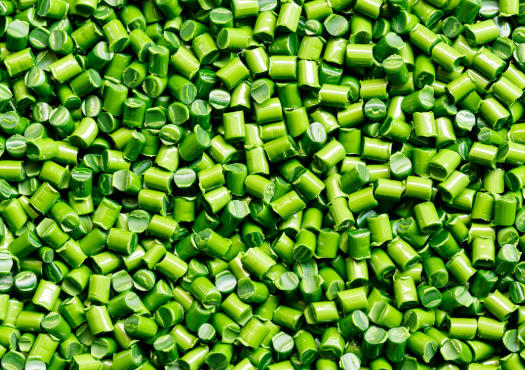
Once your material looks realistic in the viewport, refine it during rendering.
- Use IBL (Image Based Lighting) for reflective plastic surfaces.
- Apply HDRI environment maps with medium contrast. These provide reflection references.
- Adjust exposure levels for balanced highlights—plastic shouldn't appear metallic but should still react vividly to light.
For best results, test render different Masterbatch variations—opaque, translucent, or glossy—to understand how parameters interact with lighting angles.
If your project involves product rendering or visualization for manufacturing presentations, performance optimization is crucial. Complex plastic materials can slow down scenes. To solve this:
- Bake textures instead of using multiple procedural maps.
- Use simplified reflection maps in real-time applications.
- Optimize polygon count to keep focus on material appearance rather than geometry.
For marketing or catalog purposes, Masterbatch product varieties often require multiple render passes with different hues. Create instances of your material with alternate diffuse colors (green, blue, or black) to represent various Masterbatch product lines efficiently.
Both V-Ray and Arnold provide superior control for plastic materials. Using their advanced shaders, you can replicate industrial-level Masterbatch finishes.
- Utilize VRayMtl with reflection glossiness 0.75–0.85.
- Activate Glossy Fresnel IOR around 1.45.
- Add a Falloff Map in reflection slot for realism.
- Enable Coating Layer if you're simulating multilayer plastic (useful for laminated Masterbatch sheets).
- Choose aiStandardSurface material.
- Adjust Specular Roughness to 0.3–0.4.
- Set Subsurface Radius if you want translucent plastic depth.
- Control Transmission Color based on your chosen Masterbatch hue.
These renderers simulate physics-based material properties more accurately, yielding highly realistic visuals.
When recreating Masterbatch materials specifically, several small details can elevate your render's authenticity:
- Include particle effect maps that represent pigment dispersion.
- Blend multiple color inputs to show polymer mixture variation.
- Simulate internal reflections with depth-based refraction.
- Experiment with opacity gradients to represent semi-transparent profiles.
In commercial modeling, Masterbatch visualization helps product designers preview how pigmentation affects final appearance before tooling and molding—saving cost and time in industrial design cycles.
1. Over-polishing surfaces: It makes plastic resemble metal. Keep reflections soft.
2. Incorrect IOR values: Leads to unrealistic lighting behavior.
3. Excessive bump scale: Causes noisy or exaggerated textures.
4. Flat color tones: Always use layered maps or blended hues to simulate Masterbatch dispersion.
These small corrections ensure your output remains physically credible.
Creating realistic plastic materials in 3DS Max combines technical skill and visual understanding. By balancing color, reflection, and texture parameters—and integrating Masterbatch-inspired variations—you can achieve professional-grade results suitable for product visualization, advertising, or industrial simulation. Whether replicating glossy injection-molded casings or translucent polymer films, the key lies in capturing the subtle depth, brightness, and imperfections that define real-world plastics.
With deliberate practice, lighting calibration, and attention to Masterbatch details, your 3D materials will convey not only precision but also tactile realism reflective of production-grade quality.

Masterbatch is a concentrated mixture of pigments or additives encapsulated into a carrier resin, used to color or modify plastics. It ensures consistent quality, improved dispersion, and cost efficiency.
In 3D visualization, Masterbatch simulation enhances realism by introducing subtle variations in color, translucency, and surface scattering, helping replicate actual plastic material behavior under light.
Both Arnold and V-Ray offer physically accurate reflections and translucency settings ideal for creating realistic plastics, especially for color-rich or semi-transparent Masterbatch simulations.
Yes. Enable Subsurface Scattering (SSS) and Transmission in Physical Material settings. Adjust IOR to 1.5 and lower roughness for a clear yet diffused appearance resembling translucent Masterbatch polymers.
Common Masterbatch colors include black (for UV protection), white (for opacity), and vivid colors like red, yellow, and blue for brand-specific applications in packaging, electronics, and automotive products.


